THE ORANGE LIGHT FIX
Indoor Photos Too Orange? Fix Warm Bulb Light
Turn off mixed lights, face the brightest light, cool the warmth a little and judge skin, not walls. Fix the light first, then the edit.
Try the idea on your own photo with Stunna.


Free to download. Pro options available.
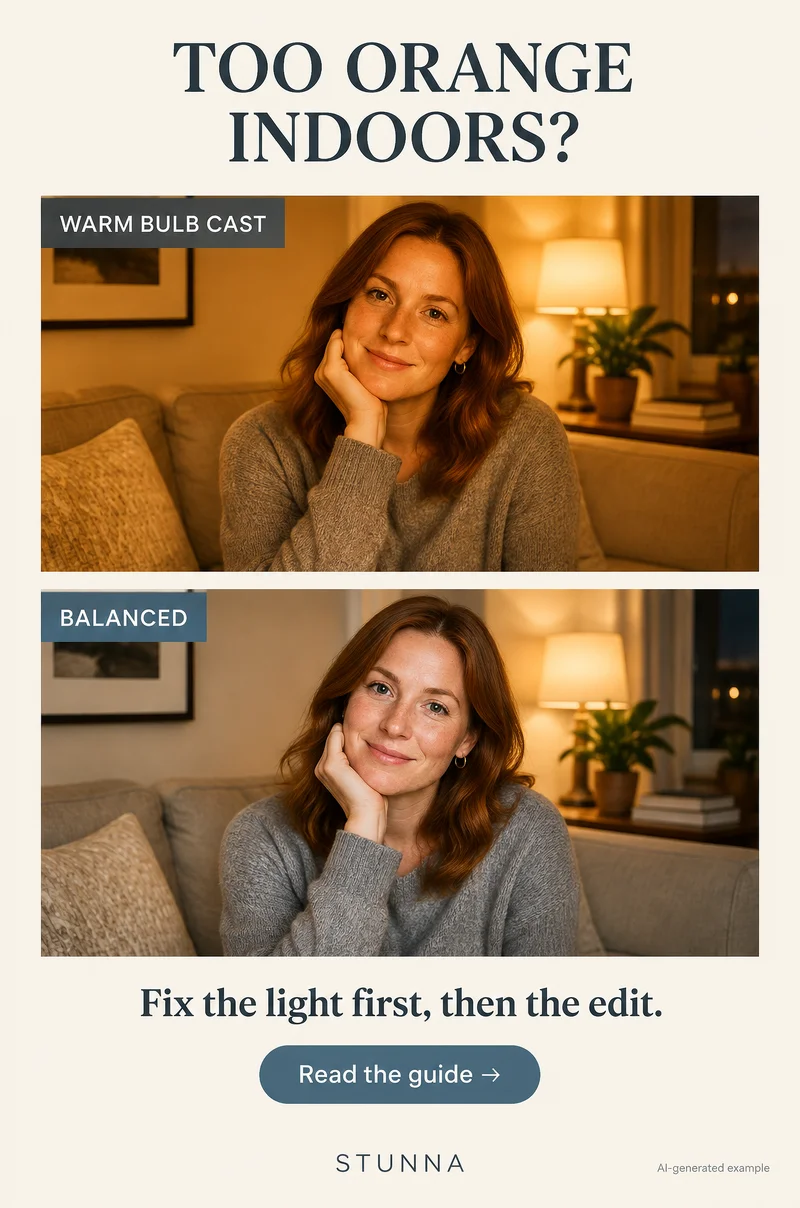
Evening photos indoors often come out orange because most home bulbs are warm, and phones do not always correct for it. The best results come from fixing the light first and editing second. The illustrations are AI-generated examples, not actual Stunna results.
Why indoor photos turn orange
Warm household bulbs give off light that leans yellow-orange. Your eyes adjust to it so the room looks normal in person, but the camera has to guess how much to correct. When the scene is full of warm surfaces, such as wood, beige walls and lampshades, the phone often leaves a lot of that warmth in, and skin turns orange.
It gets worse when light sources are mixed. Blue-ish daylight from a window or a cool ceiling light plus warm lamps means no single correction looks right: one side of the face goes orange and the other goes grey.
Fix orange indoor light: 4 checks
Save these four checks for evening photos. The first two happen before you shoot; the last two in the edit.
- 01 Turn off mixed lights: choose one type of light for the photo. Switch off the cool overhead light if you are using lamps, or close the curtain on fading daylight. One color of light is much easier for the phone, and for you, to balance.
- 02 Face the brightest light: turn toward the strongest lamp so it falls on your face from the front or side. A brighter face needs less boosting, and boosted shadows are where orange and noise build up.
- 03 Cool the warmth a little: in the editor, move warmth or temperature slightly toward blue. Stop when skin looks natural, not when the room looks white; a little warmth keeps the evening mood.
- 04 Check skin, not walls: judge the color by skin tones and the whites of the eyes, not by walls or lampshades. A warm wall can stay warm if the face looks right.
Fix the light first, then the edit
Editing can only shift the colors the photo already has. If one side of a face is lit by an orange lamp and the other by a blue window, cooling the image turns the window side bluer still. That is why the setup matters more than the slider.
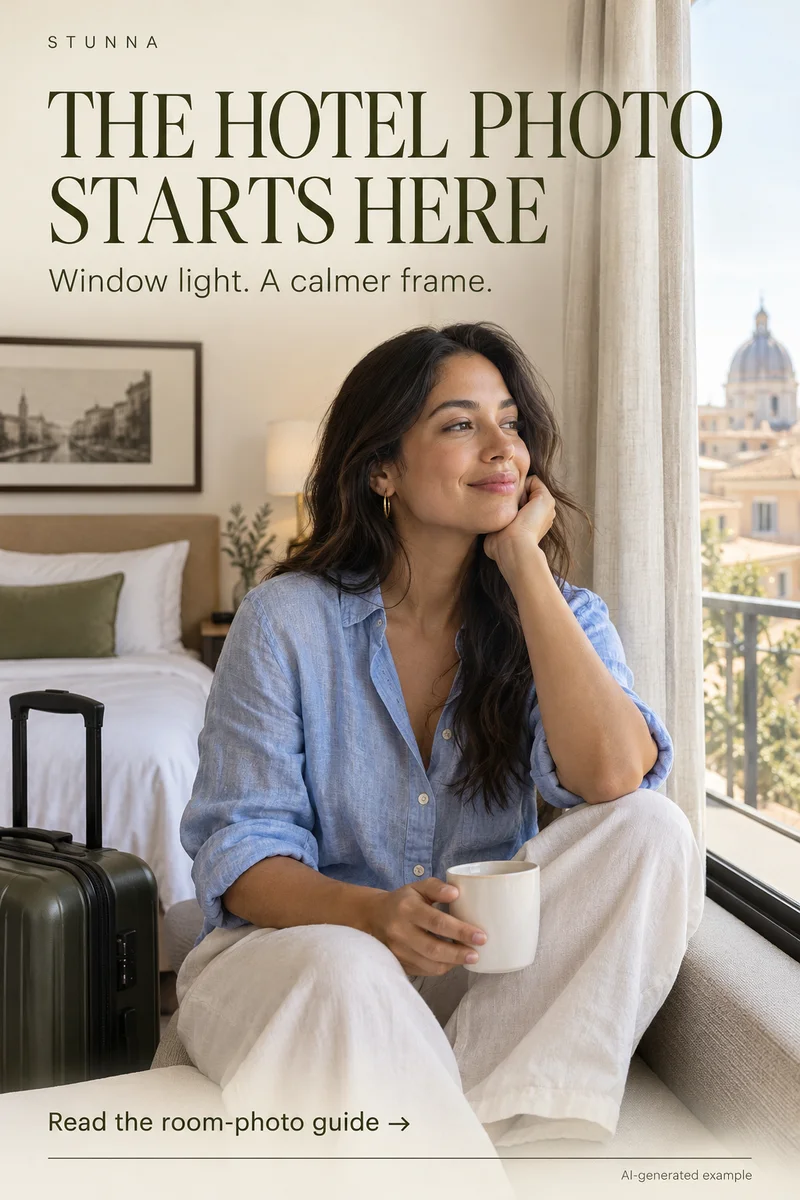
Spend thirty seconds on the room before taking the shot: one type of light, the face turned toward it and nothing very bright behind the subject. Then the edit becomes a small nudge instead of a rescue. For daylight setups, the window light photo guide shows how to use a window as the main light instead of lamps.
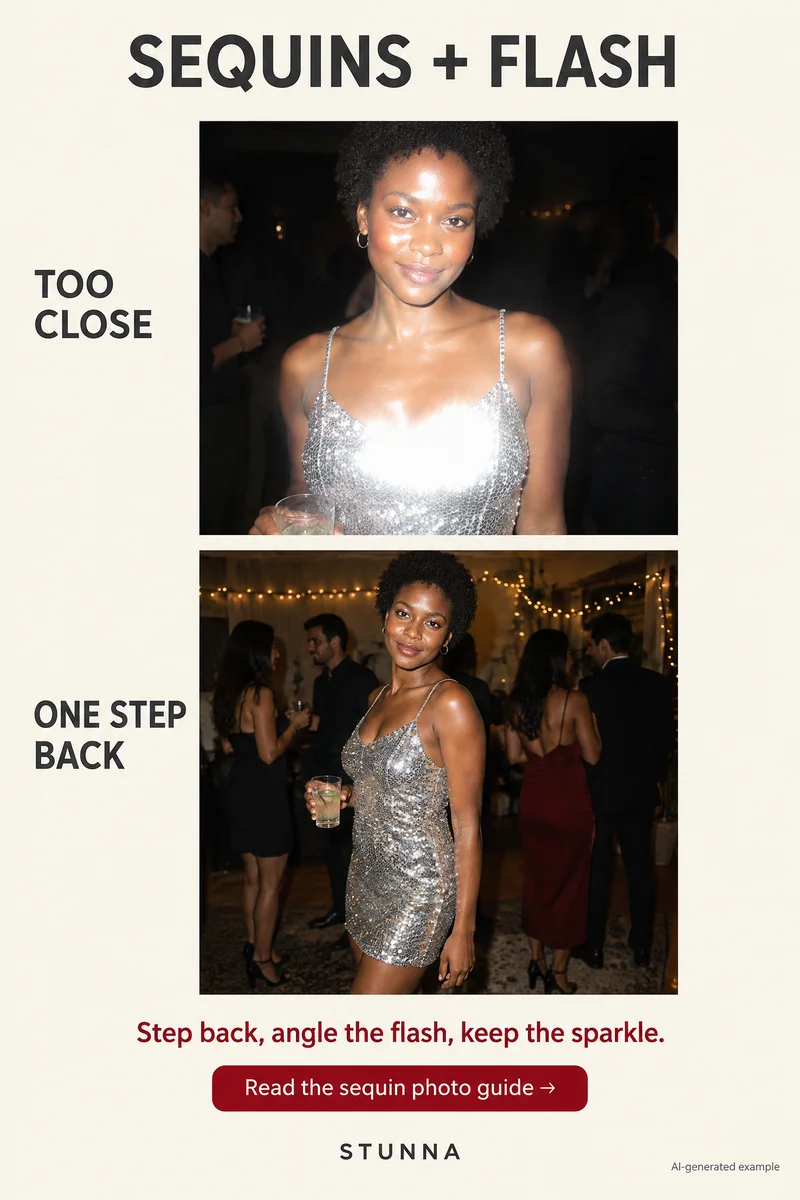
If the room only has warm bulbs and the face is still too orange, try one frame with flash from a couple of steps away. Phone flash is much closer to neutral than a household bulb, so it lights the face with cleaner color while the lamps keep the background warm. Compare it with a no-flash frame and keep whichever feels more like the evening.
How to cool warmth on iPhone and Android
On iPhone, open the photo in Photos, tap Edit, then use the Adjust tools; you can swipe through settings and drag the slider for precise changes, as described in [Apple's editing guide](https://support.apple.com/guide/iphone/edit-photos-and-videos-iphb08064d57/ios). Look for the warmth control and move it slightly cooler, then check tint if skin looks a little green or magenta afterward.
On Android, gallery and photo apps vary by manufacturer, but most editors include a warmth or temperature slider under their adjust or color tools. Make small moves and compare with the original using the before and after view if your editor has one.
Stunna does not have a white-balance or color-correction preset, so do this correction in your phone's own editor.
Common mistakes
These make orange photos worse or swap one problem for another.
- Draining all the color: dragging warmth far toward blue or cutting saturation leaves skin grey and lifeless. Cool only until skin looks right.
- Judging by the walls: walls and lampshades are supposed to be warm; skin is the reference.
- Shooting in mixed light and fixing it later: no global edit can balance two light colors at once.
- Sitting with the lamp behind you: the face falls into shadow, and brightening it amplifies the orange cast and noise.
- Switching to black and white as a fix: it can work as a style, but it does not solve the color problem for color photos.
Keep some warmth on purpose
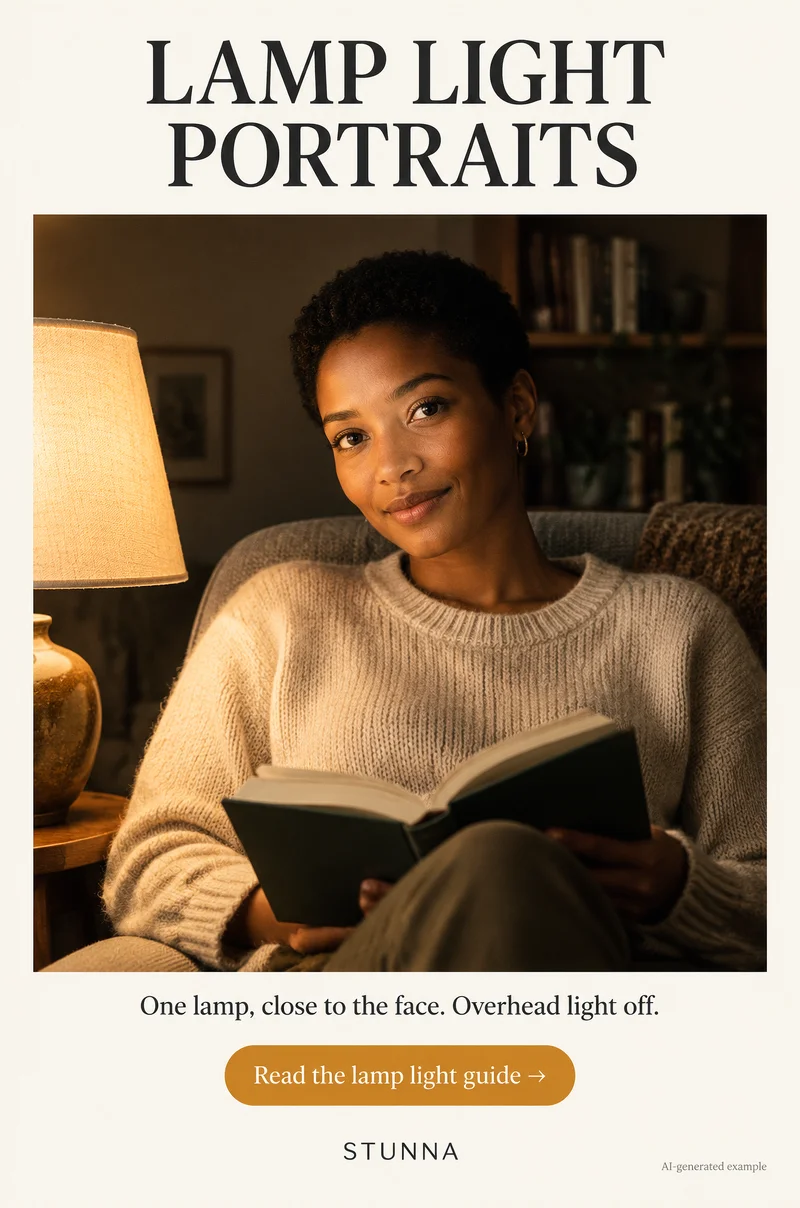
Evening light is supposed to feel cozy. The goal is natural skin with a warm room, not a daylight look at 10 pm. If you love the glow of lamps or fairy lights, keep the background warm and make sure faces are only lightly corrected. For a deliberately cozy look, see our guide to lamp light portraits.
For more on this kind of light, see the string light photo guide and, for keeping skin realistic during edits, the natural skin photo edit guide.
A few useful answers
Why are my indoor photos so orange?+
Most home bulbs give warm light, and the phone does not always correct it fully, especially with lots of warm walls and wood in the frame or mixed light sources.
How do I fix orange photos on my phone?+
In your phone's editor, move the warmth or temperature slider slightly cooler and judge the result by skin tones. Better still, turn off mixed lights and face the brightest lamp before shooting.
Should I make indoor photos completely neutral?+
Not usually. A little warmth keeps the evening mood. Aim for natural skin, and let lamps and walls stay warm.
Can Stunna fix orange light?+
No. Stunna has no white-balance tool, so correct the color in your phone's editor first, then try a look like Window Glow or Soft Flash if you want one.