Start with a photo that has contrast
Sepia is built from brightness, so a flat grey photo gives a flat brown one. Raise the contrast slider a few points on overcast shots, and check that the whites still look cream, not dull.
FREE ONLINE PHOTO TOOL
Turn a photo into a warm brown sepia print. Pick a sepia tone, set the strength, fade and grain, and download a free JPG. It runs in your browser, so the photo never leaves your device.
This is an independent free photo tool that recolors the pixels you give it. It does not use the AI of the Stunna app and is not affiliated with any other sepia tool or editor.
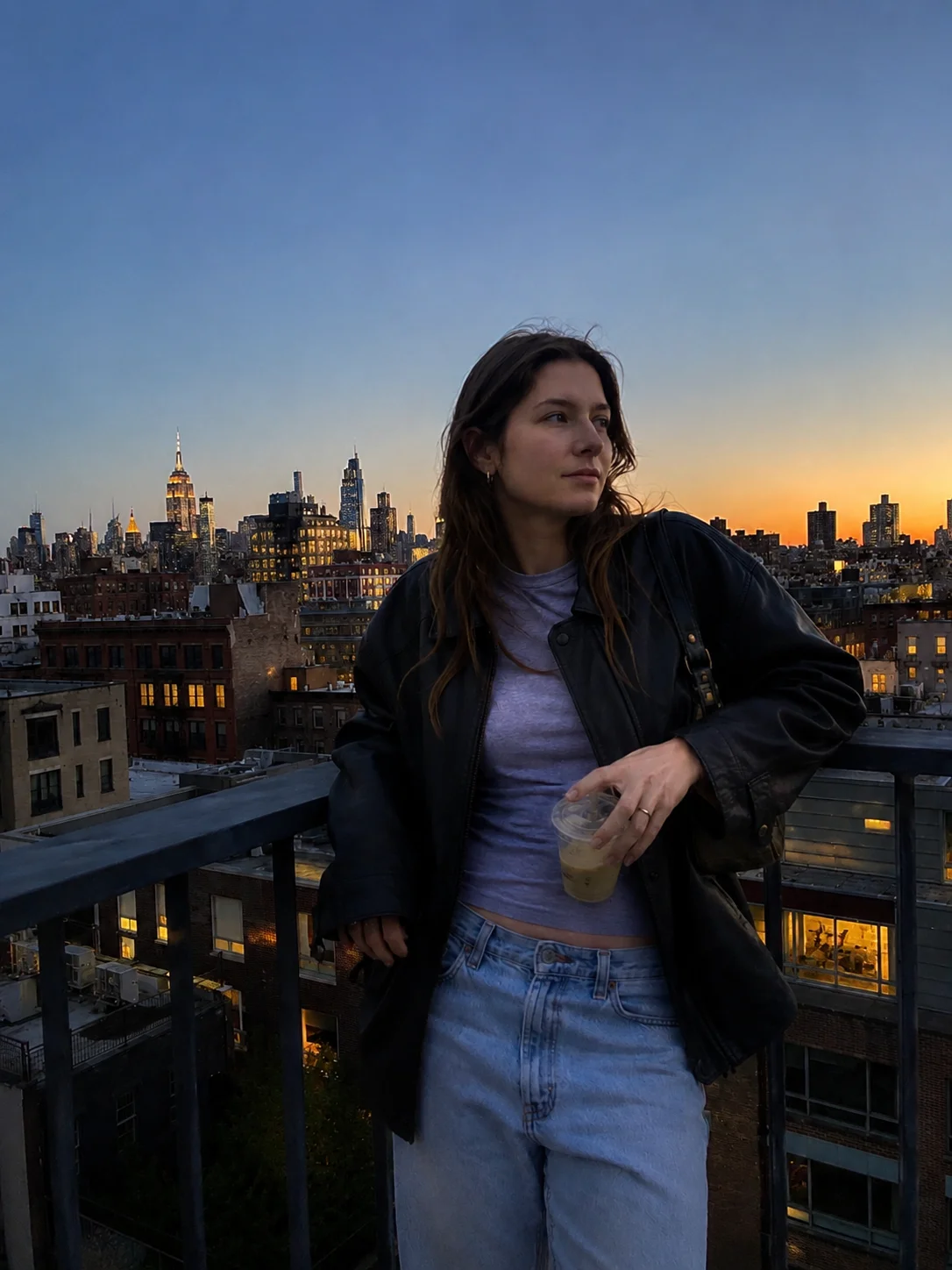
Classic sepia · Sample photo; the effect is rendered live above.
Pick a sepia tone, then set the strength, fade and grain.
or drop it here · JPG, PNG, WebP · up to 20 MB
Free. No signup. No watermark. Up to 3000 px.
Get the full look in Stunna
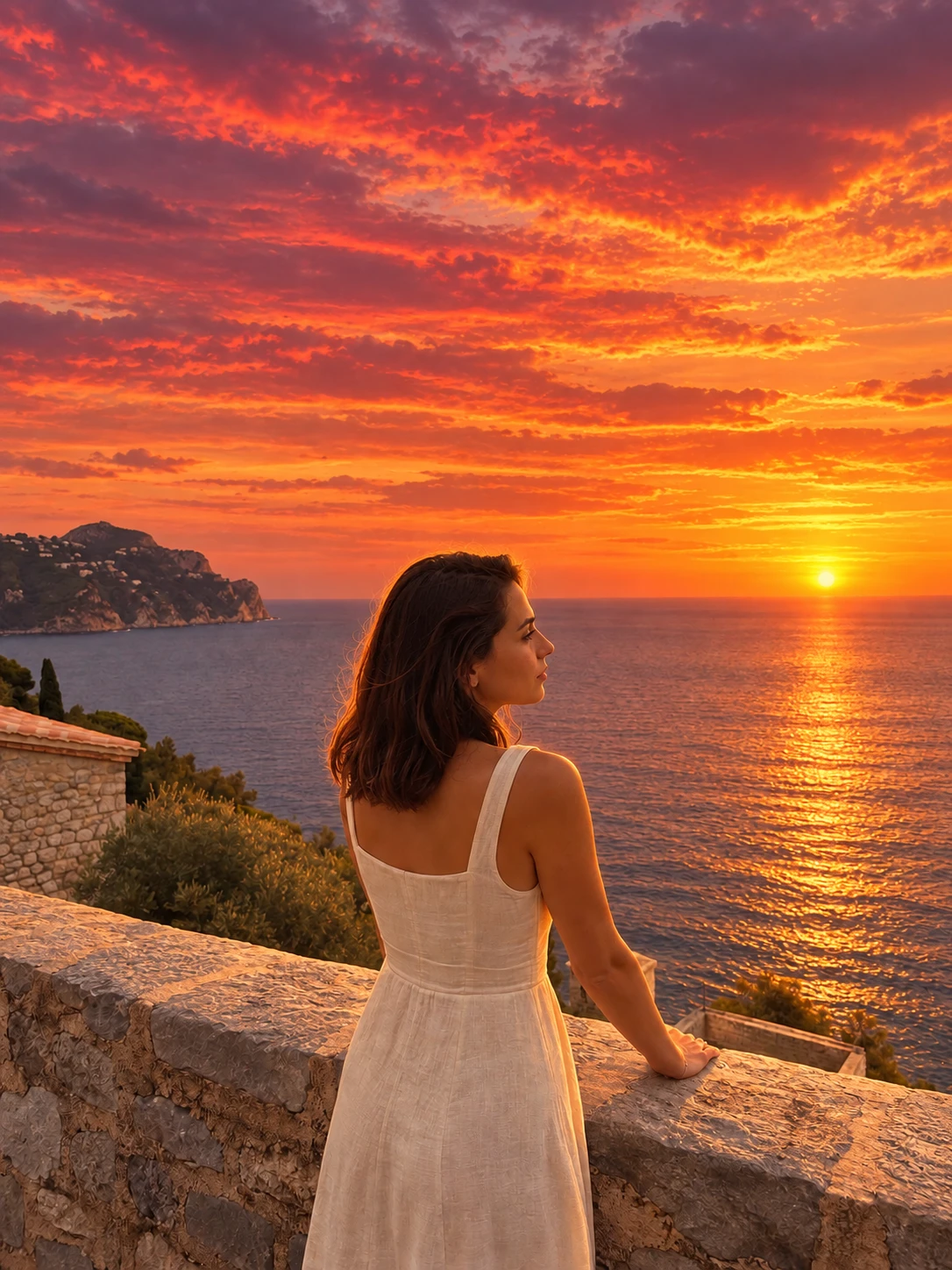
The 70s Portrait look in the Stunna app adds amber film color, soft bloom and vintage warmth with AI.
Try 70s Portrait in StunnaTry the sample or choose your own photo.
Pick a JPG, PNG or WebP from your device or drag it onto the editor. Photos with a clear range from dark to bright, like a face in side light or a skyline at dusk, give the richest sepia.
Classic sepia is the standard mid-brown print. Warm antique is darker and heavier, Faded cream is pale and soft, and Split-tone keeps a hint of the original color. Show original lets you compare at any time.
Sepia strength controls how much brown replaces the original color. Fade lifts the blacks and grain adds texture. Save a watermark-free JPG up to 3000 px on the long edge.
Sepia is a brown monochrome tone. The word comes from the pigment made from cuttlefish ink, and in photography it describes prints toned from neutral grey to warm brown. A traditional sepia print was made by bleaching a black and white silver print and redeveloping it in a toning bath, which converted the silver into a more stable brown compound. Many old albumen and gelatin prints also aged toward brown by themselves. A sepia filter reproduces the look on a digital photo: it throws away the original colors, keeps the brightness of every pixel, and maps dark to light onto a ramp from deep chocolate to cream.
This free sepia tone effect does that mapping on your own pixels, not by laying a brown overlay on top. Because it works from brightness, a bright sky stays pale and a shadow stays dark, so the picture keeps its shape instead of turning into a muddy wash. Four looks give you different prints, and the strength slider fades between the original color photo and the full sepia tone, which is the quickest way to find how much brown a picture can take.
Sepia suits photos where mood matters more than color: portraits, old streets, buildings, weddings and anything you want to feel remembered rather than current. It is closer to a black and white filter than to color, but warmer and softer, and it is narrower than a vintage filter, which keeps color and adds fade and a warm cast. If you are deciding between sepia and black and white, our black and white photo guide explains how neutral grey changes a picture. Sepia is the same idea with a warmer tone. For more texture, add grain to the photo or read about film grain.
Try the free toolA rooftop portrait at dusk with the Classic sepia look: the blue sky and orange glow collapse into one brown tone, the skyline keeps its detail, and a little fade and grain make it feel like a print. Try Warm antique, Faded cream or Split-tone sepia in the editor.
Try it on your photo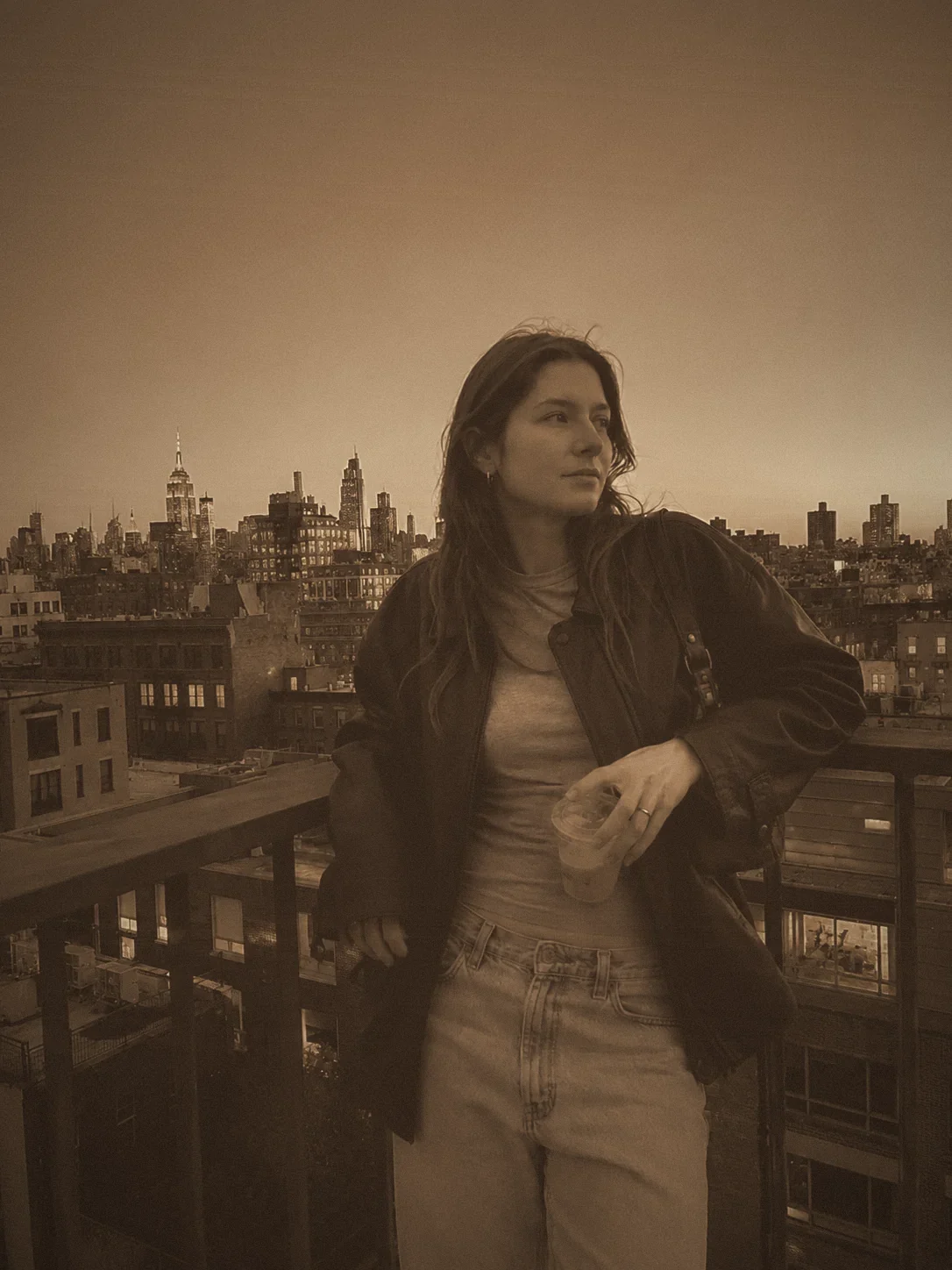
Sepia is built from brightness, so a flat grey photo gives a flat brown one. Raise the contrast slider a few points on overcast shots, and check that the whites still look cream, not dull.
Full strength is the true sepia print. Around 70% to 85% lets a little of the original color through and often looks more natural on skin, especially when the photo was shot in warm light.
Pure sepia on a perfectly clean photo can look like a digital tint. A little fade and 20% to 35% grain make it read as a print. For finer control over texture, use the add grain to photo tool afterwards.
If the color is the problem, a black and white photo is usually the cleaner fix. Choose sepia when you want warmth and age, such as for golden hour shots from our golden hour guide.

The free filter recolors the photo you took into a brown tone. The 70s Portrait look in Stunna is the closest preset: AI-made amber film color, soft bloom and vintage portrait warmth. It is not a pure sepia look. Free to download, with optional Pro features.


Free to download. Optional Pro features. AI results vary.
Explore Stunna’s AI looks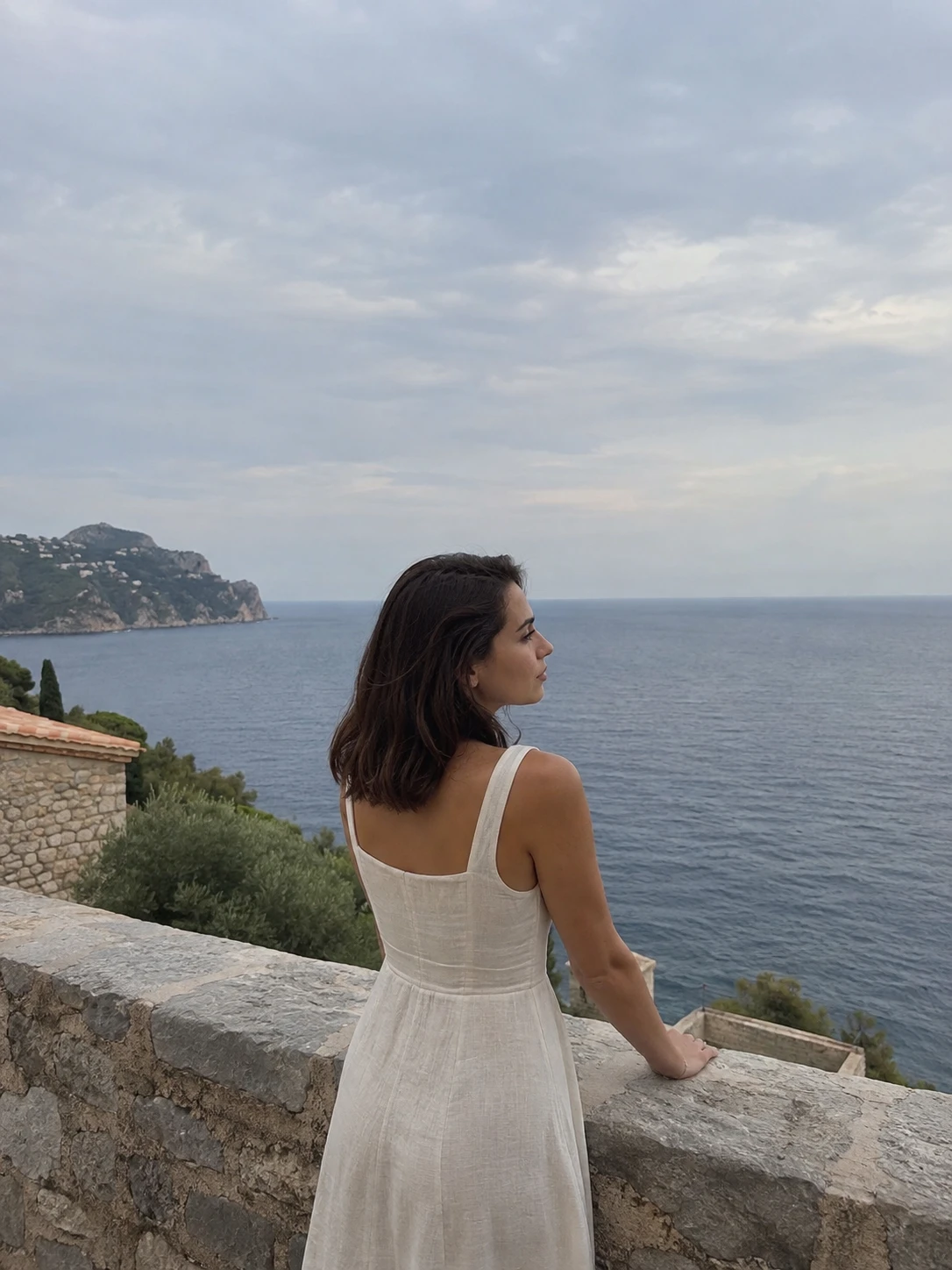
Upload your photo, pick one of the four sepia looks, then adjust strength, fade and grain. Download the result as a JPG. The sepia tone is built into the file, so you do not need an editing app.
Many editing apps include a sepia filter, but you do not need one for this. This page works in any modern browser on a phone or computer, with no download and no signup. For AI-based vintage and film looks, the Stunna app has dedicated presets, listed below.
Sepia is one brown tone applied to the whole picture. A vintage filter usually keeps the original colors and adds fade, a warm cast, lifted blacks and grain. Our free vintage filter covers that, and the Split-tone look here sits between the two.
Black and white uses neutral greys. Sepia replaces the greys with a warm brown tone, which reads softer and older. The brightness values are the same, only the tint of the print changes.
It is free, with no account and no watermark, and downloads are JPG files up to 3000 px on the long edge. The effect is rendered in your browser, so the photo stays on your device. Closing the tab clears the session.
Not a dedicated sepia preset. The closest is the 70s Portrait look in the Stunna app, an AI look with amber film tones and soft bloom. It re-creates the scene with AI, so results differ from this free tool.
Photo tips and ideas that pair well with this tool.