Judge the whites first
Bright skin, clothing and sky should stay clean white, not grey. If they look dull, raise contrast a few points before reaching for more grain.
FREE ONLINE PHOTO TOOL
Turn a photo black and white in seconds. Pick a look, tune contrast and grain, then download a free JPG. Your photo never leaves your device.
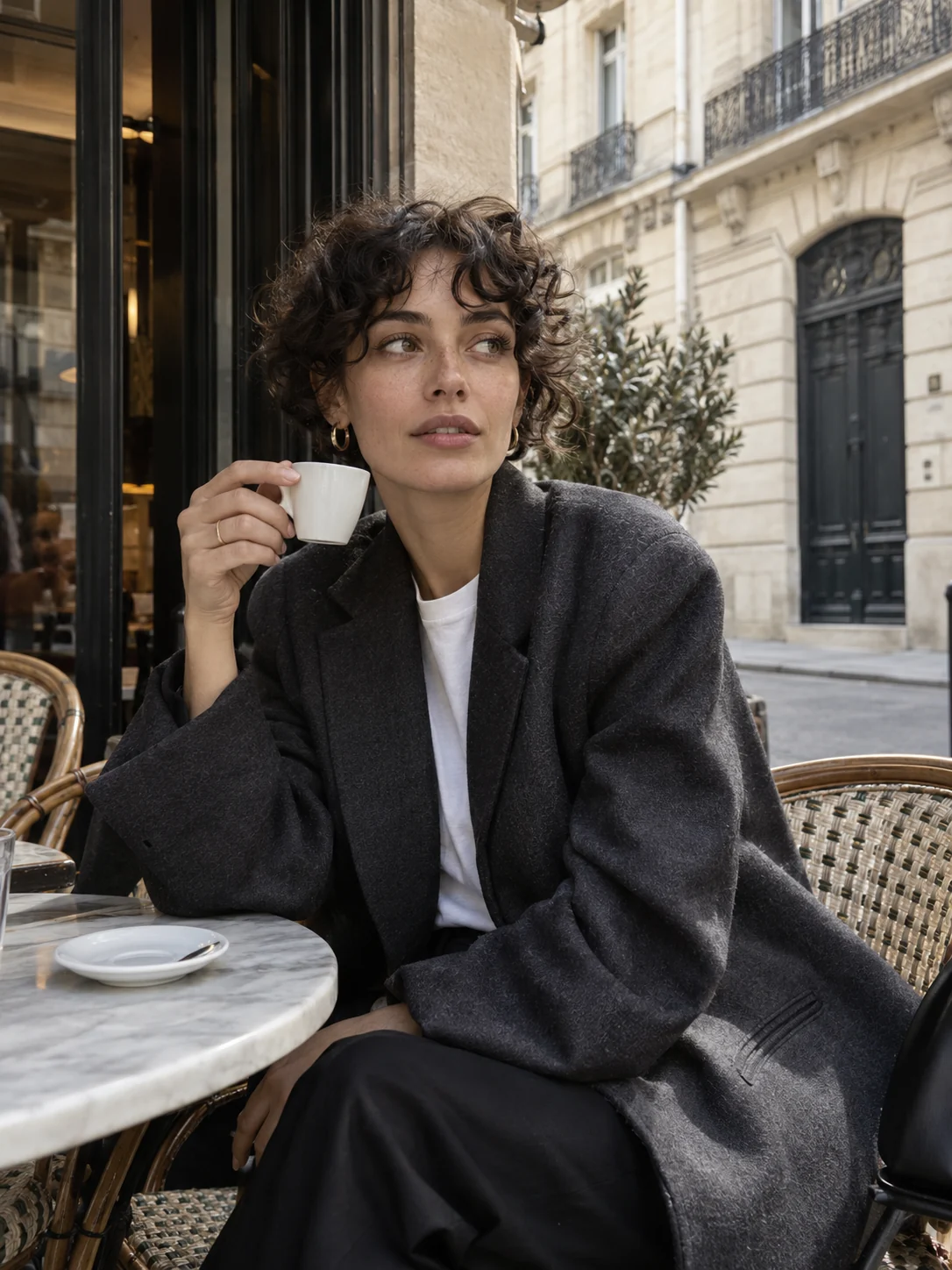
Classic B&W · Sample photo; the effect is rendered live above.
Choose a look, then tune contrast and grain.
or drop it here · JPG, PNG, WebP · up to 20 MB
Free. No signup. No watermark. Up to 3000 px.
Get the full look in Stunna
The Stunna app’s B&W Flash and Noir presets add real flash light, deep blacks and fine grain with AI.
Try B&W Flash in StunnaTry the sample or choose your own photo.
Pick a JPG, PNG or WebP from your device, or drag it onto the editor. Portraits with clear light on the face and street photos with strong shadows convert especially well.
Start with Classic B&W for a natural result, or try High-contrast noir, B&W flash and Soft matte. Switch to Show original at any time to compare.
Raise contrast until the whites are clean and the blacks feel rich, add a little grain for texture, and save a watermark-free JPG up to 3000 px.
Black and white takes color out of the picture, so what remains is light, shape and expression. A busy background, a clashing outfit or an unflattering white balance matter far less once color is gone. That is why a black and white filter is one of the quickest ways to rescue a photo that is almost right. For shooting advice, see our guide to black and white portrait photography.
This free black and white filter converts your photo on your device with a weighted channel mix instead of simply draining the saturation, so skin, skies and clothing keep believable brightness. Four looks cover the common moods, and the contrast and grain sliders push each one further. The original file is never changed.
Photos with a clear light source and a clear subject convert best: window light on a face, a figure against a bright wall, the hard shadows of midday. Our guide to window light photography shows how to set up the first. A flat, evenly lit photo can turn grey, so add contrast first and check the result at full size before you download.
Try the free toolA Paris café portrait becomes a timeless monochrome photograph: crisp tailoring, pale stone and soft daylight. Rendered with the Classic B&W look above.
Try it on your photo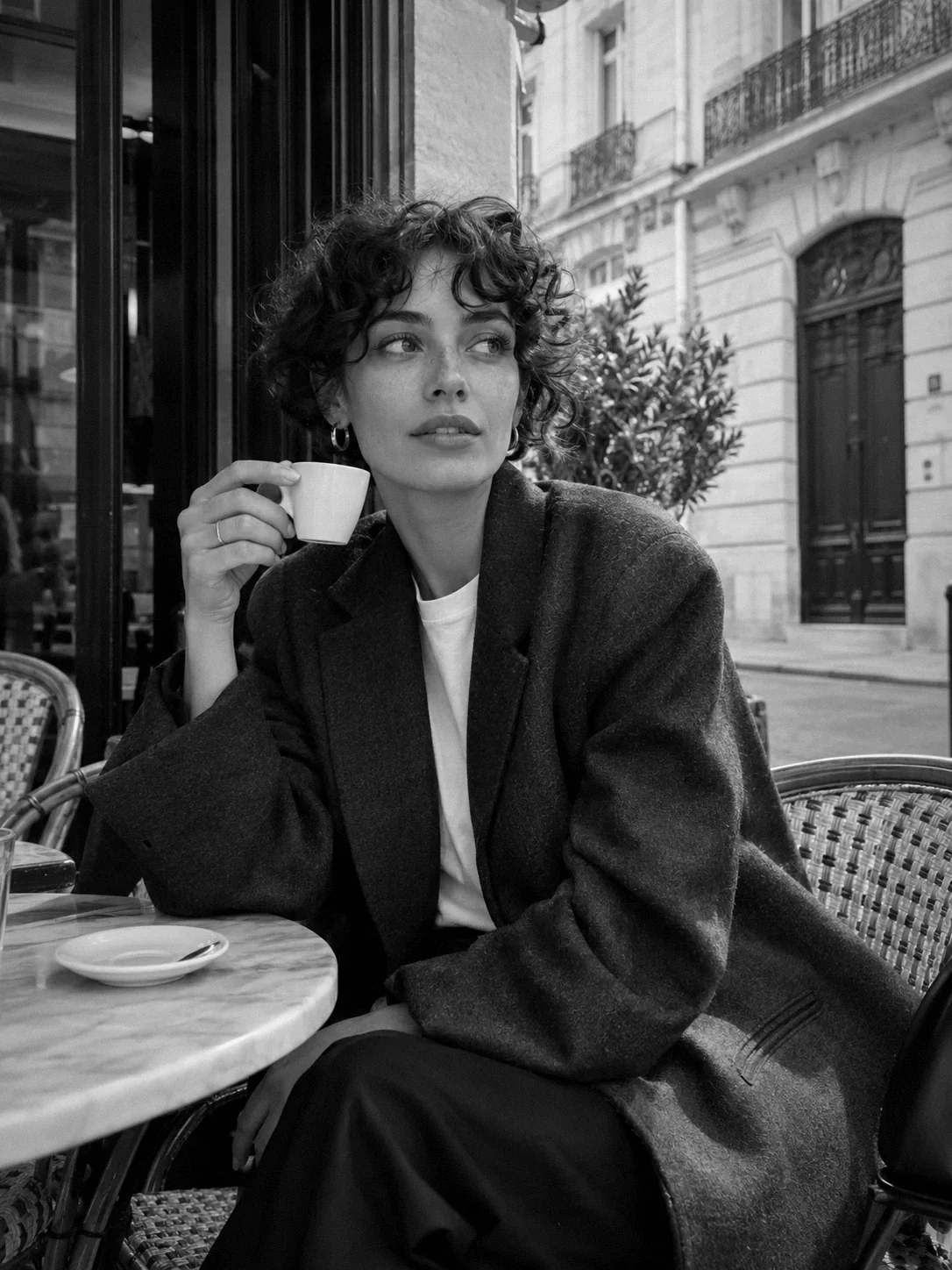
Bright skin, clothing and sky should stay clean white, not grey. If they look dull, raise contrast a few points before reaching for more grain.
Around 15–30% gives a film-like texture. Past 50% it starts to hide eyes and fine detail, especially on photos that were small to begin with. For finer control, use our dedicated tool to add grain to a photo.
Noir loves hard shadows and low light, matte suits soft daylight, and B&W flash is best on photos that were already taken with a direct flash.
A red top can glow while a blue shirt turns nearly black. If an important color disappears, switch looks: noir and classic weigh the color channels differently.
This free filter converts the colors you already have. Stunna’s B&W Flash and Noir presets go further, with direct-flash light, deep blacks and fine grain applied with AI. Free to download, with optional Pro features.


Free to download. Optional Pro features. AI results vary.
Explore Stunna’s AI looks
Yes. You can convert and download as many photos as you like without an account, an app or a watermark. Downloads are JPG files up to 3000 px on the long edge.
No. The conversion runs in your browser on your device, so your photo is never sent to a server. Closing the tab clears the editing session.
Classic keeps natural tones with moderate contrast. Noir uses a red-heavy channel mix, much higher contrast and a stronger vignette, which gives darker skies and a more dramatic mood.
Choose the B&W flash look. It brightens the centre of the frame and lets the edges fall off. It works best when the photo was taken with a real flash, because a filter cannot invent new light.
Not in this tool. It converts the whole photo to monochrome. Use Show original to compare, and use Stunna in the app for creative edits that go beyond a filter.
Photo tips and ideas that pair well with this tool.