Go bigger than you think
For a face in a full-size photo, use blocks of at least 20 px. Tiny blocks look censored but can still read as the person.
FREE ONLINE PHOTO TOOL
Pixelate an image or only the parts that should stay private. Faces are found for you, so you can blur a face in a photo, black out a license plate or censor an image in a few taps. Free, and it all runs on your device.
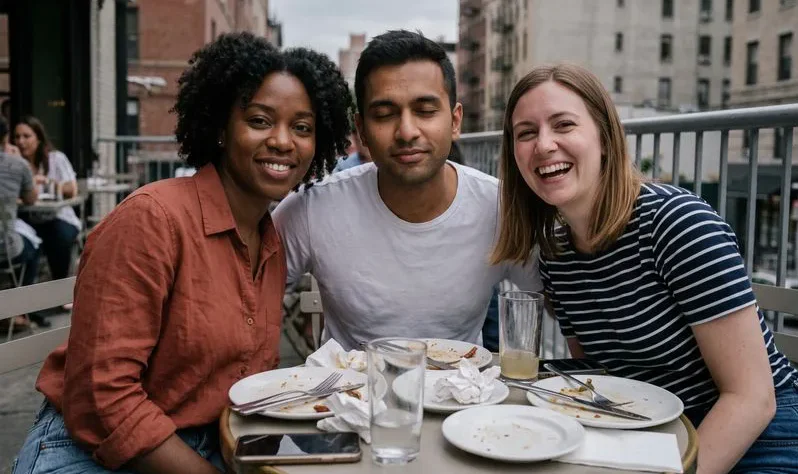
Pixelate · Sample photo, rendered live.
Censor faces, text and plates, pixelate the whole picture or turn it into pixel art.
or drop it here · JPG, PNG, WebP · up to 20 MB
Free. No signup. No watermark. Up to 3000 px. Location data removed.
Someone blinked?
Group Blink in the Stunna app opens one person’s eyes and leaves everyone else as they were. AI results vary.
Try Group Blink in StunnaTry the sample or choose your own photo.
Choose a JPG, PNG or WebP, or start with the sample group photo. On iPhone, tap Choose a photo and pick it from your library. Nothing is uploaded.
Faces are found and covered for you; tap one to switch it off or back on. Use Draw box for text and plates, or Brush for any shape. Then choose Pixelate, Blur, Black bar or an emoji.
Save a PNG or JPG at full size, up to 3000 px on the long edge. The download is a fresh file, so location and camera data from the original stay behind.
Pixelating an image turns an area into flat blocks of color. Blurring smears it, and a black bar replaces it completely. All three let you censor an image without giving up the photo: the group shot stays postable, and the friend who asked to stay offline stays that way. Our group photo guide has ideas for a shot everyone is happy with.
Face detection runs on your device. The tool checks the whole frame, then smaller overlapping sections, so faces at the back of a group or a crowd are caught too. You decide what stays covered: tap a face to leave it visible, draw a box over a plate, or brush along a name tag. Putting together a weekend photo dump? Hide strangers in the background before you post.
Pixel art mode pixelates the whole picture on purpose. It reduces the photo to 8, 16 or 32 colors and can add grid lines, so you go from image to pixel art in one step, ready to rebuild with beads, cross-stitch or Minecraft blocks. For a quieter finish on a couple photo, run it through the black and white filter after you have hidden what you need.
Try the free toolA solid black bar. It replaces what is underneath, so nothing can be recovered from the file. Pixels and blur keep a little of the original, which is fine for a face in a crowd but not for a passport number.
| Style | Can it be reversed? | Best for | Looks |
|---|---|---|---|
| Black bar | No. The original pixels are replaced, so there is nothing left to recover. | IDs, addresses, card numbers, screen text | Blunt and obvious |
| Pixelate | Sometimes, partly. Small blocks over short text or numbers can be guessed. | Faces, license plates, people in the background | Classic mosaic, clearly censored |
| Blur | Sometimes, partly. A light blur on text can be sharpened back. | Faces and busy backgrounds when you want a soft look | Soft and natural |
| Emoji sticker | Not under the emoji itself, but the corners of a large face can show. | Kids’ faces, friends in a story, fun posts | Playful |
Rule of thumb: the bigger the blocks or the stronger the blur, the safer. For anything that could identify someone or open an account, use Black bar.
For a face in a full-size photo, use blocks of at least 20 px. Tiny blocks look censored but can still read as the person.
Hair, uniforms and school logos can identify a child too. Brush over the whole head and shoulders, or use an emoji sticker.
Before you download, scan mirrors, windows, screens and name tags. Faces in a reflection are easy to miss, so add a box by hand.
Start with 16 colors and a pixel size that gives about 48 to 64 blocks across. Turn on grid lines when you want to rebuild it block by block.
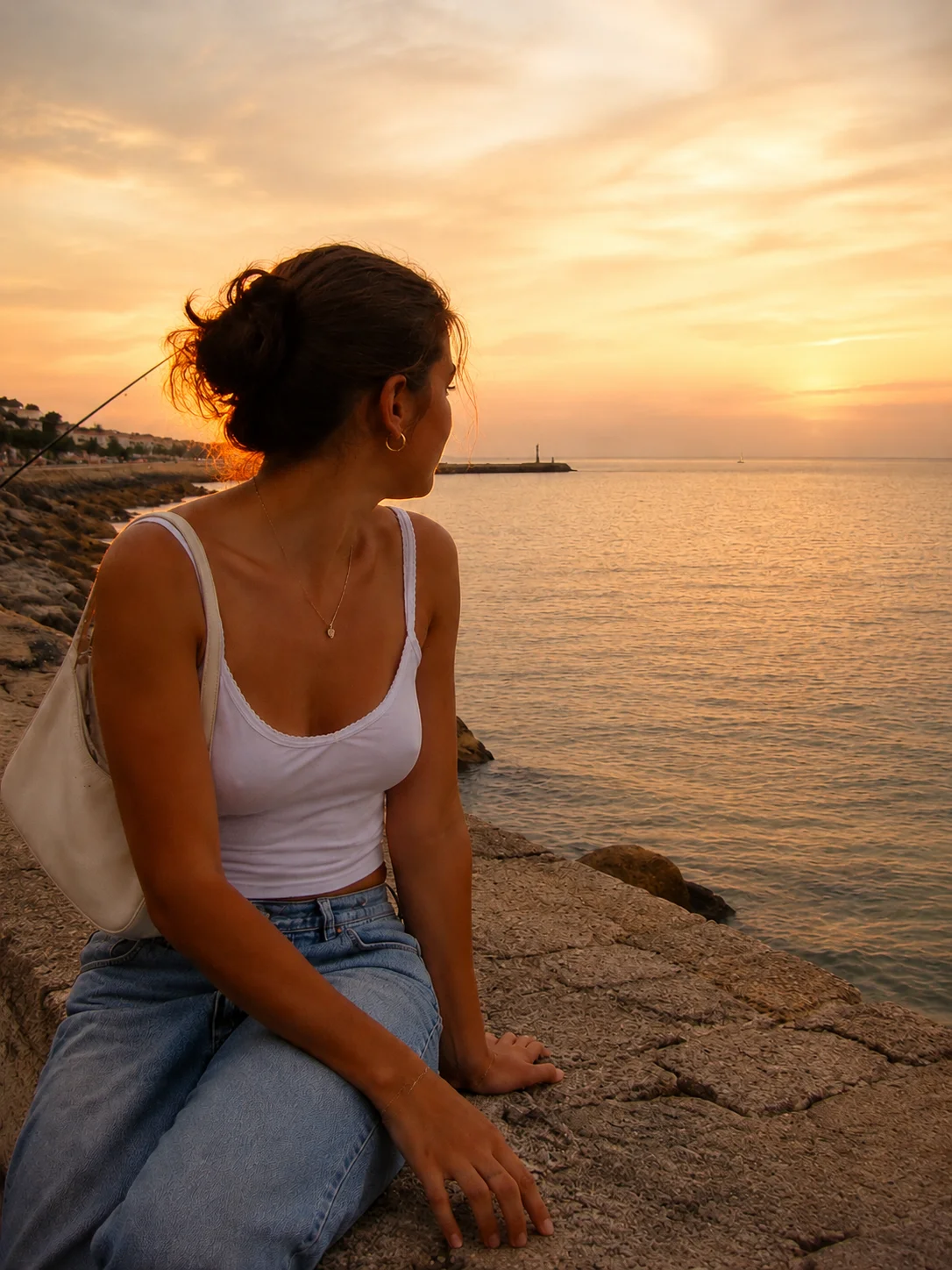
Hiding a face is one fix. The Stunna app helps with the others: Group Blink opens the eyes of the one person who blinked and leaves everyone else as they were, and light looks like Golden Hour warm up a flat, grey photo, as in this example. AI results vary.


Free to download. Optional Pro features. AI results vary.
Explore Stunna’s AI looks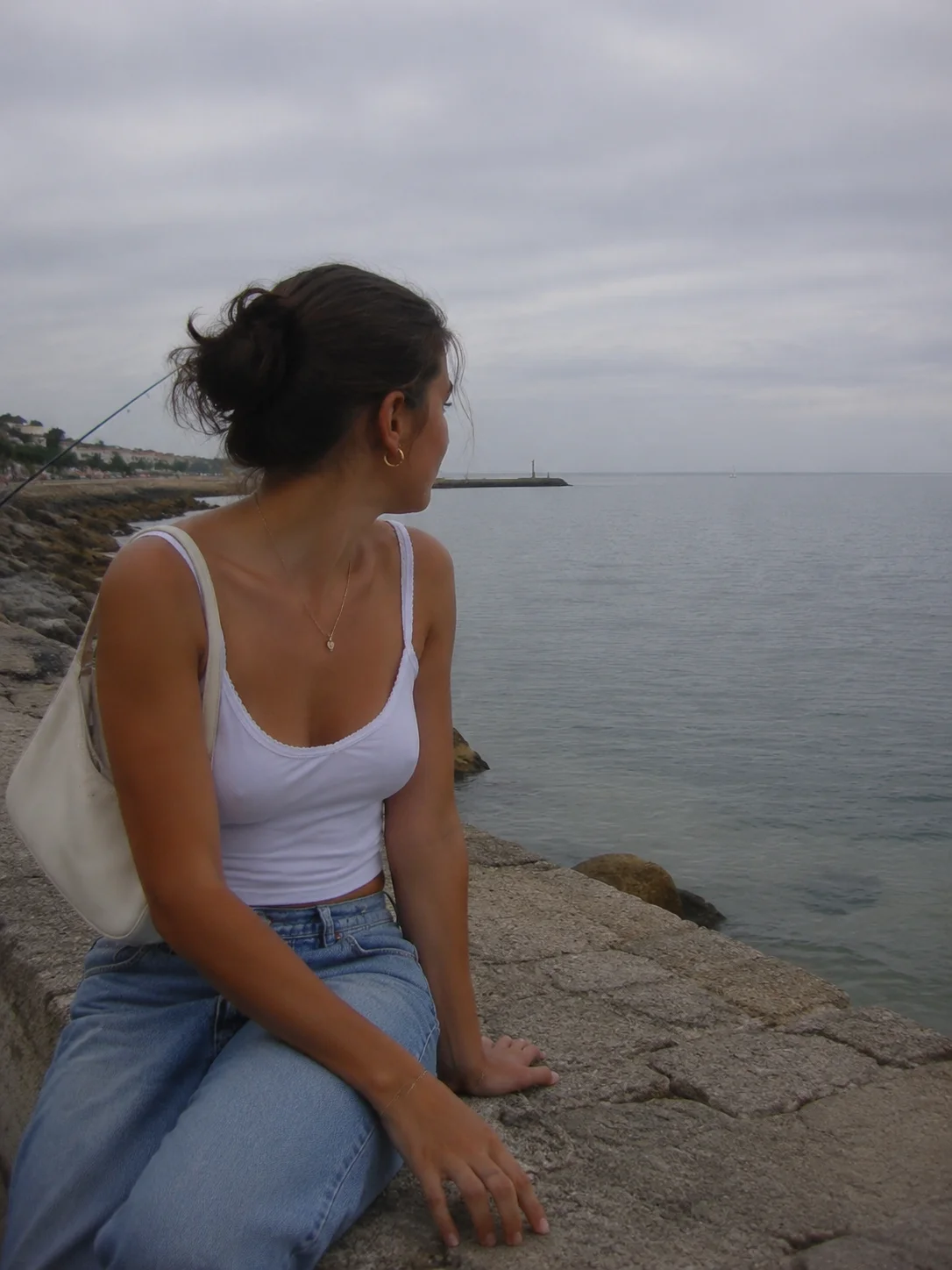
Open your photo here and keep Censor areas selected. Faces are covered automatically; for anything else, choose Draw box or Brush and mark the part you want hidden. Pick Pixelate, raise Block size until the detail is unreadable, then download a PNG or JPG.
Yes. An on-device model looks for faces in the full photo and in smaller overlapping sections, then covers each one it finds. Tap a face to turn it off or back on, or use Select all faces. Very small, turned-away or partly hidden faces can be missed, so check the photo and add a box by hand if needed.
Neither is as safe as a black bar. Large pixel blocks are usually harder to read than a light blur, but both keep a little of the original. For IDs, addresses, passwords and anything on a screen, use Black bar.
Not exactly, but small blocks over short text or numbers can sometimes be guessed by comparing them with known fonts, and light blur can be partly sharpened. Bigger blocks make that much harder. A black bar replaces the pixels completely, so nothing under it can be recovered from the downloaded file.
Open the screenshot, choose Draw box and drag over each line of text, then pick Black bar. If a face box appears that you do not need, tap it to switch it off. Save as PNG to keep the rest of the screenshot sharp.
Yes. The download is a new image drawn from the pixels, so EXIF data such as GPS location, camera model and the time the photo was taken is not copied into the file. The original on your phone keeps its data.
Yes. Choose Pixel art, set the pixel size and pick 8, 16 or 32 colors. Grid lines are optional and help if you want to rebuild the picture with beads, cross-stitch or Minecraft blocks. PNG keeps the block edges crisp.
Yes. Every mode, style and download is free, with no account and no watermark. Downloads are full resolution up to 3000 px on the long edge; larger photos are resized proportionally. Input can be JPG, PNG or WebP up to 20 MB.
No. Your photo is processed in your browser on your device and is never sent to a server. The face detection model is downloaded to your browser from a public code library and runs locally. Refreshing the page clears your photo.
Photo tips and ideas that pair well with this tool.