Fit the platform before you post
Choose 4:5 for an Instagram portrait post, 1:1 for a square and 9:16 for Stories. The photo is never stretched, only surrounded with more border.
FREE ONLINE PHOTO TOOL
Put a clean border around any photo, or give it a polaroid-style frame. Choose the width and color, pick a size for Instagram or Stories, and download a free JPG.
The polaroid frame is a layout effect applied to your existing photo. It does not add the soft color of instant film, and it is not affiliated with any instant-camera brand.
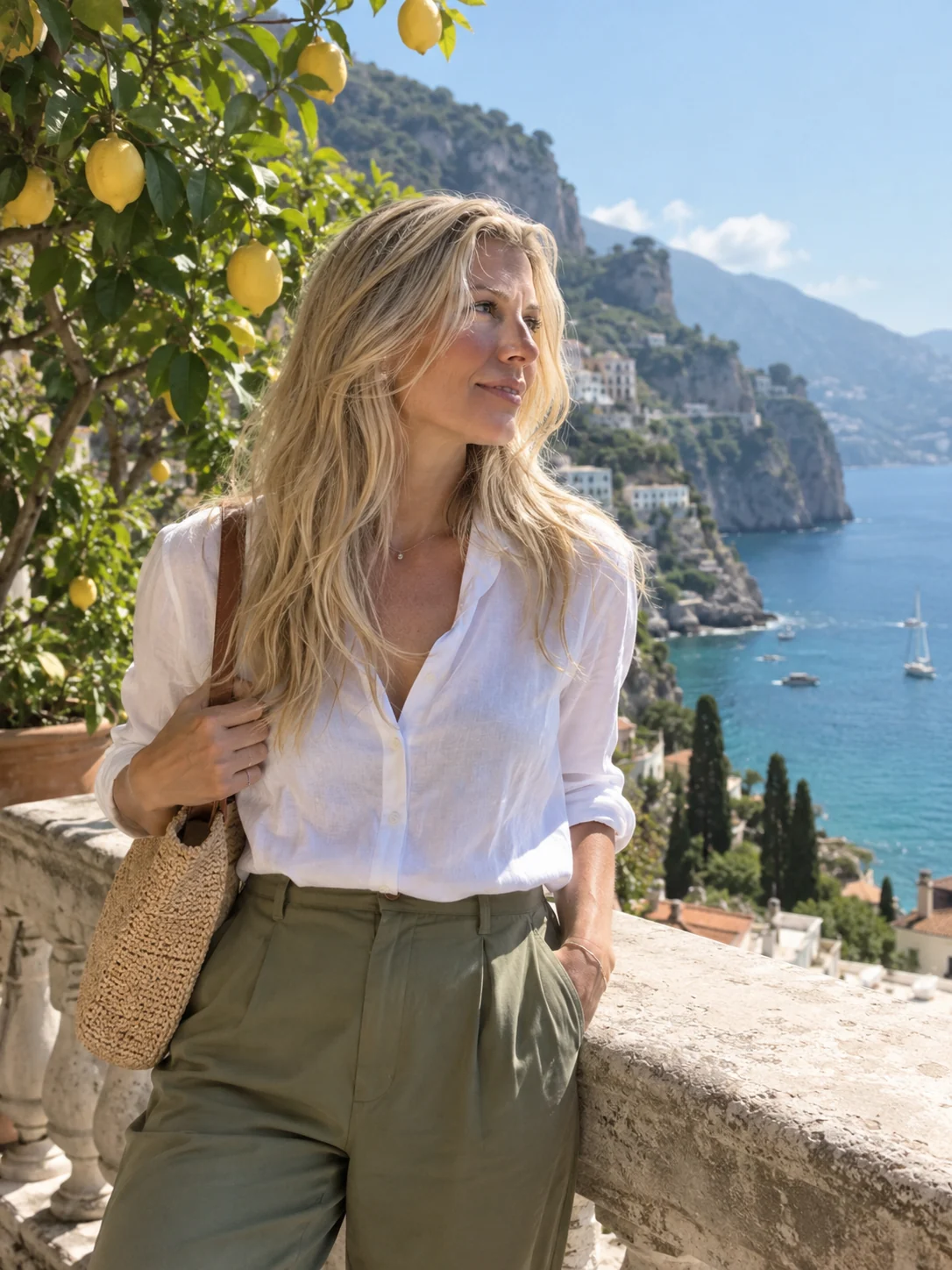
Clean white · Sample photo; the effect is rendered live above.
Pick a frame, then set the width, color and output shape.
or drop it here · JPG, PNG, WebP · up to 20 MB
Free. No signup. No watermark. Up to 3000 px.
Get the full look in Stunna
The Polaroid preset in the Stunna app adds creamy instant-film color and the white border with AI.
Try Polaroid in StunnaTry the sample or choose your own photo.
Pick a JPG, PNG or WebP. The whole picture is kept: the border is added around it, so nothing gets cropped.
Choose Clean white, Polaroid, Gallery mat or Black matte, then set the border width. Under Output, keep the original shape or fit the canvas to 1:1, 4:5 or 9:16.
Compare with Show original, then save a watermark-free JPG with the border built into the image, ready to post or print.
A border works like a mat in a picture frame. The empty space gives the eye a rest, separates the photo from a busy feed or background and makes an ordinary snapshot look curated. White is the classic choice because it feels clean and lets the colors stand out, while off-white is warmer and closer to the paper of a printed photograph.
This tool pads the canvas around your photo. You choose the border width, the color and the output shape. Original keeps your photo’s own proportions. The 1:1, 4:5 and 9:16 options grow the canvas to fit a square post, an Instagram portrait post or a Stories frame, adding the extra space as border instead of cropping the picture. Turn on the polaroid-style bottom and the frame gets the thick lower edge of an instant print, a favorite for scrapbook pages and photo dump covers.
Keep in mind that a polaroid frame here is a layout, not a color treatment. Real instant film has its own creamy tones and soft contrast, and this tool leaves your colors as they are. For that finish, use the Polaroid look in the Stunna app, which also adds the frame.
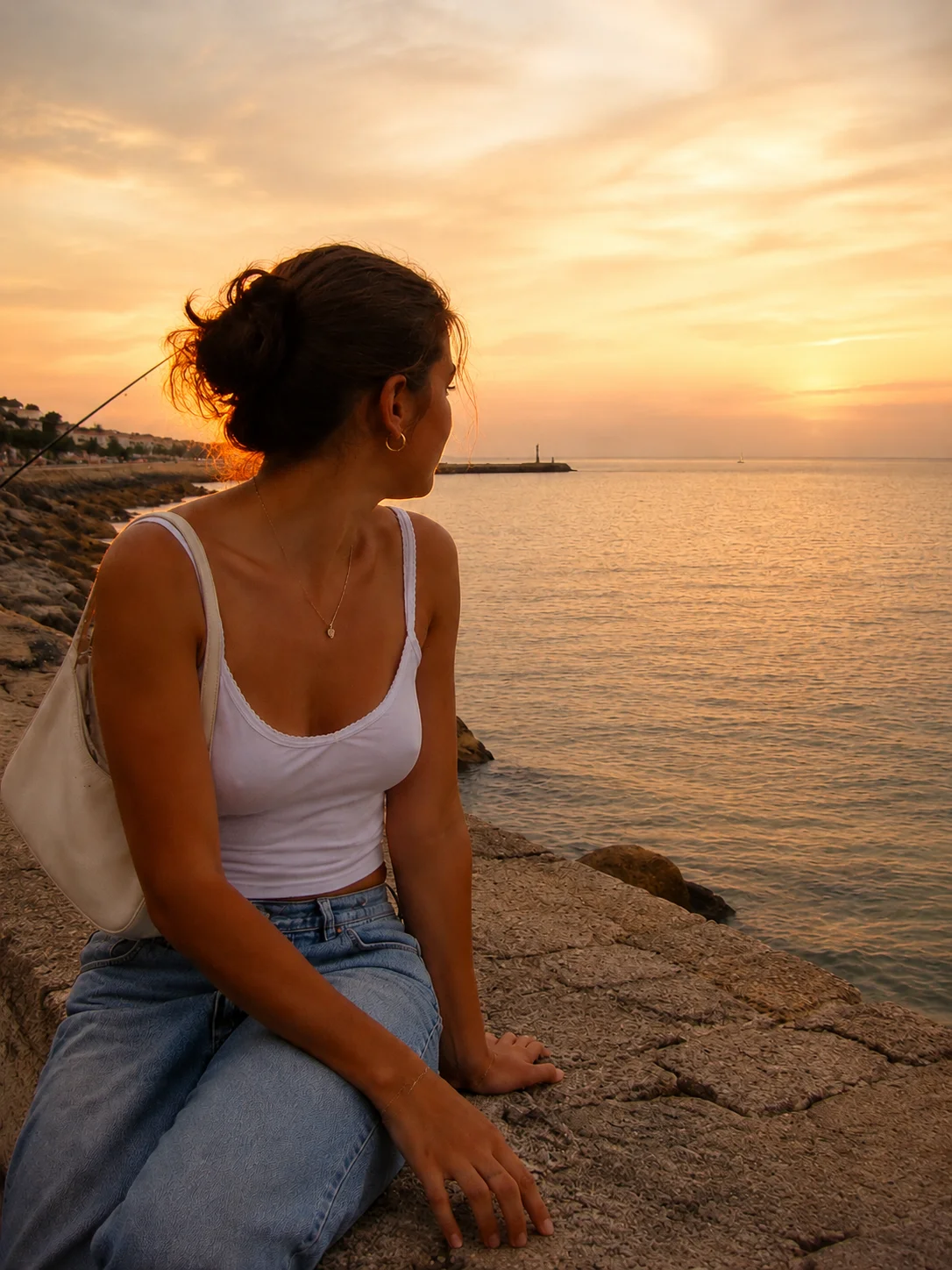
Try the free toolAn Amalfi terrace portrait inside a clean white border, with the whole photo kept inside. Try Polaroid for a deeper bottom edge, Gallery mat for more space or a 4:5 output for your feed.
Try it on your photo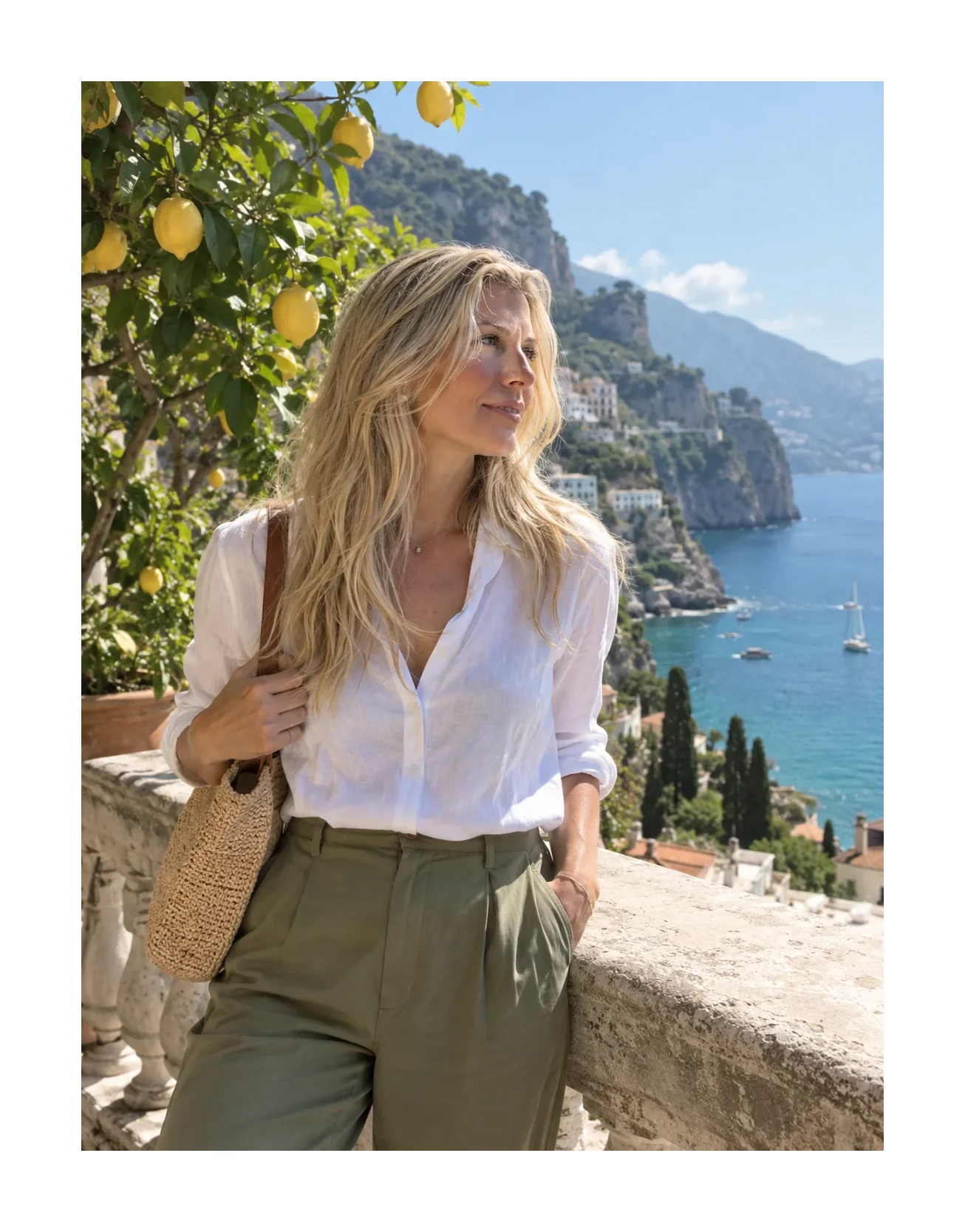
Choose 4:5 for an Instagram portrait post, 1:1 for a square and 9:16 for Stories. The photo is never stretched, only surrounded with more border.
A very thick border shrinks the photo on a phone. Around 25% to 45% keeps the picture large and still reads as a frame.
Warm photos sit well on off-white, cool or neutral ones on pure white, and dark, moody shots on black.
Leave the bottom empty for a caption you add later, or keep it clean for the instant-print look.
The free tool adds the frame. The Polaroid preset in Stunna goes further with AI: creamy instant-film color and the iconic white border in one tap. Free to download, with optional Pro features.


Free to download. Optional Pro features. AI results vary.
Explore Stunna’s AI looks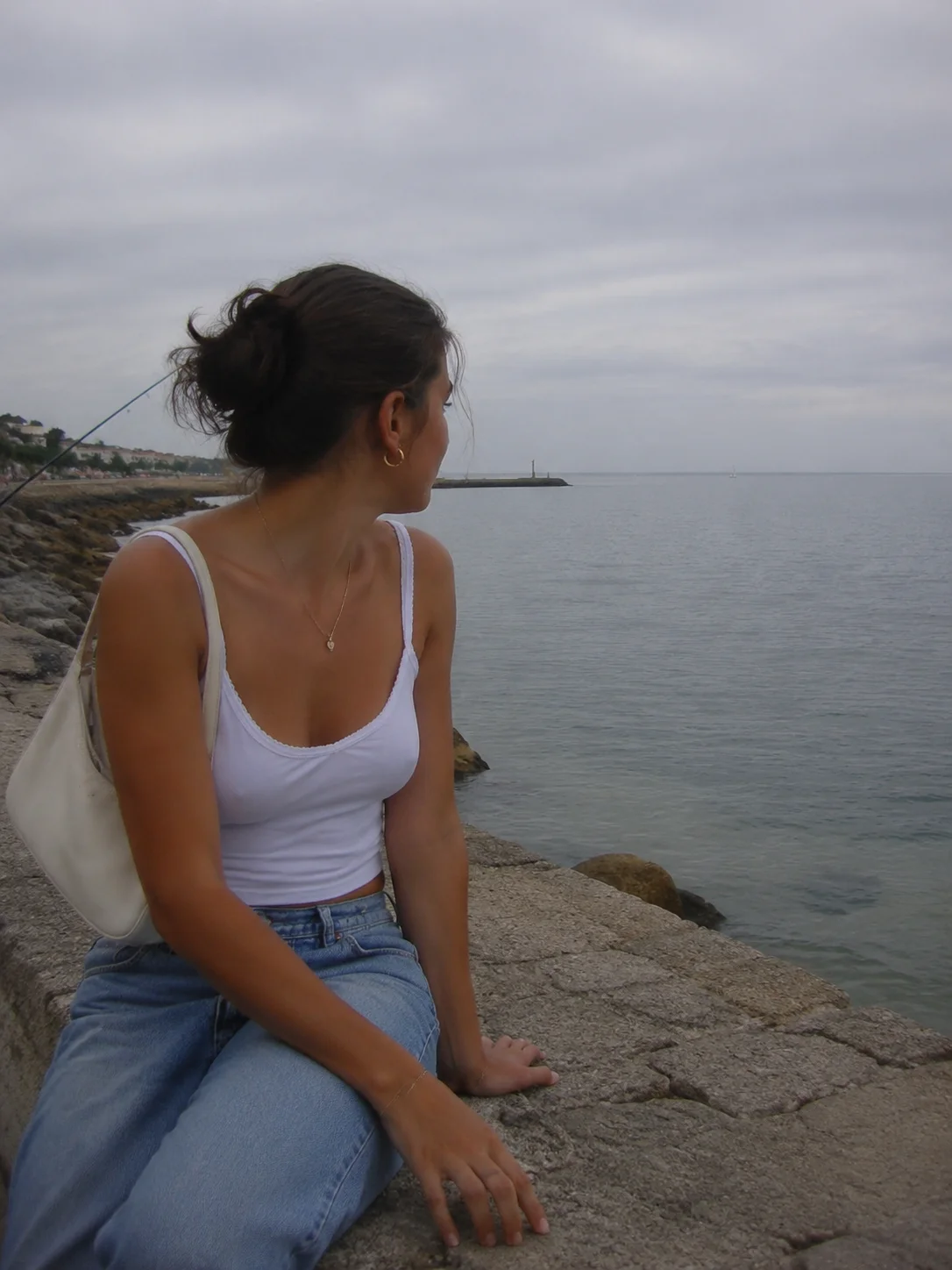
Choose your photo, pick Clean white, then set the border width. The border is added around the whole picture and the result downloads as a JPG.
You can make a polaroid-style frame for free: turn on the thick bottom or choose the Polaroid look. It adds the shape of an instant print but not the color of instant film.
Yes. Under Output, choose 1:1, 4:5 or 9:16. The tool adds border space to reach that shape instead of cropping your photo.
No. The photo keeps its full area and gets the border added around it. For very large photos the final image is scaled down so the longest side stays at or under 4096 px.
No. Everything happens in your browser, so the photo stays on your device. Closing the tab clears the session.
Yes. The Polaroid preset in the Stunna app uses AI for creamy instant-film color with the white border. Free to download, with optional Pro features.
Photo tips and ideas that pair well with this tool.