THE PHOTO DUMP COVER GUIDE
Photo Dump Cover Ideas: How to Pick the First Photo
Compare a portrait, a detail, and a wide shot, then check the crop, focal point, caption space, and promise of the sequence.
Try the idea on your own photo with Stunna.


Free to download. Pro options available.
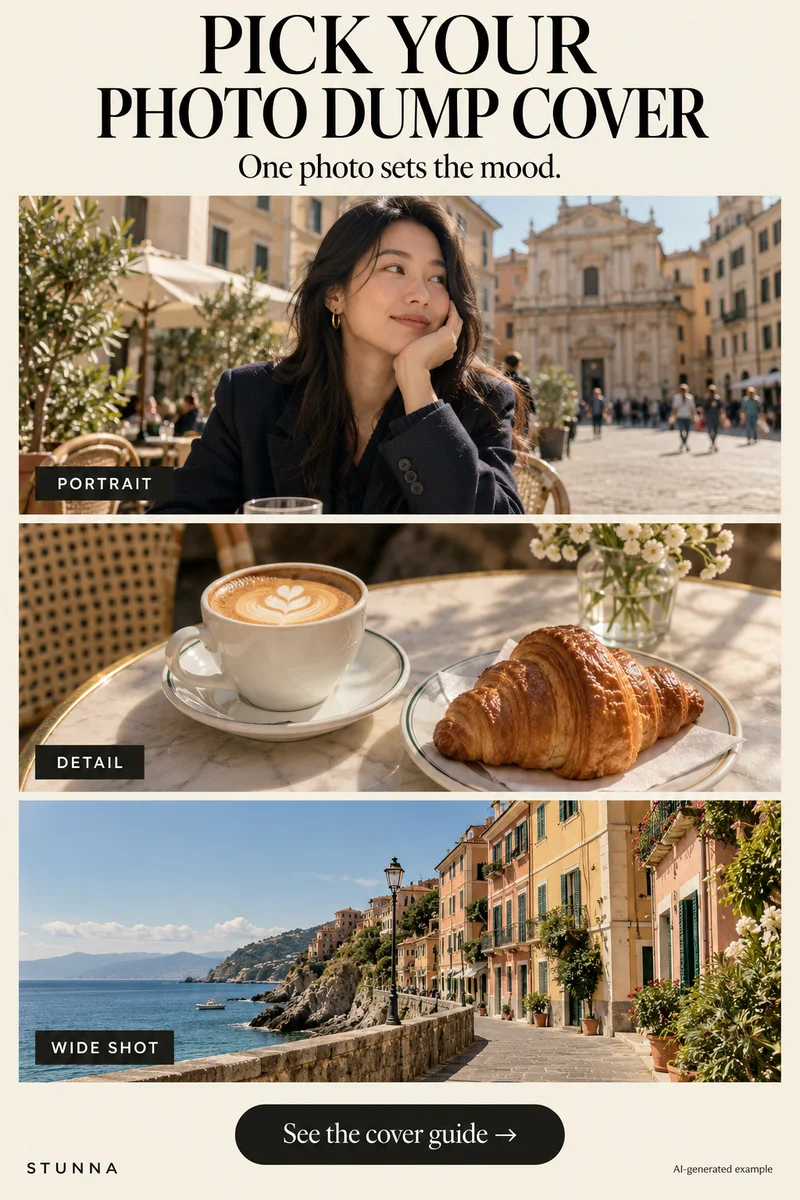
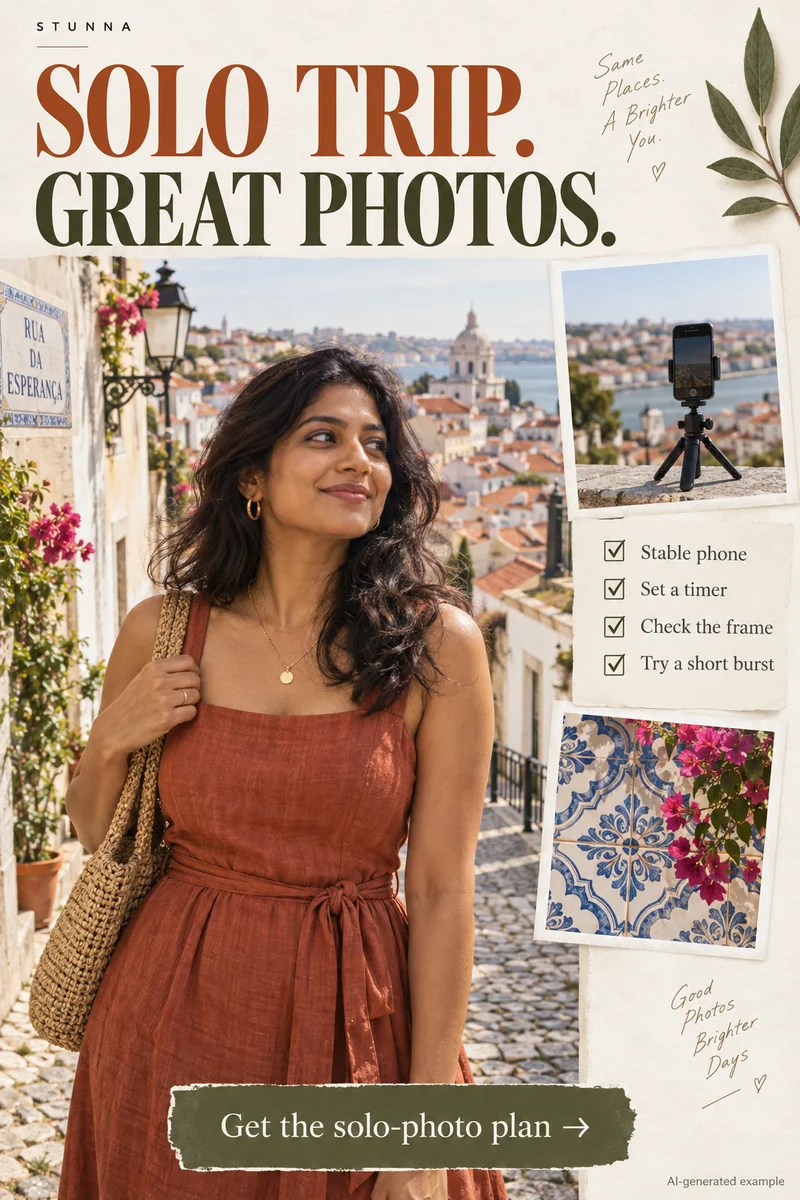
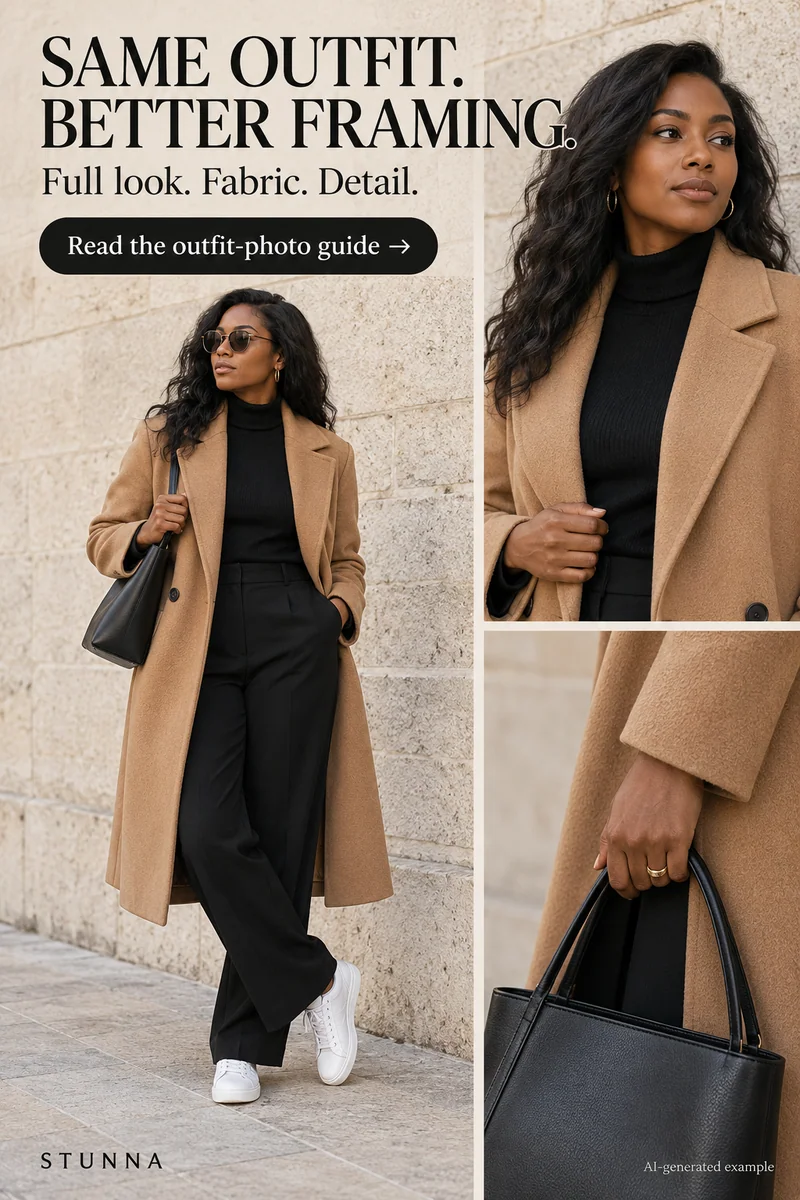
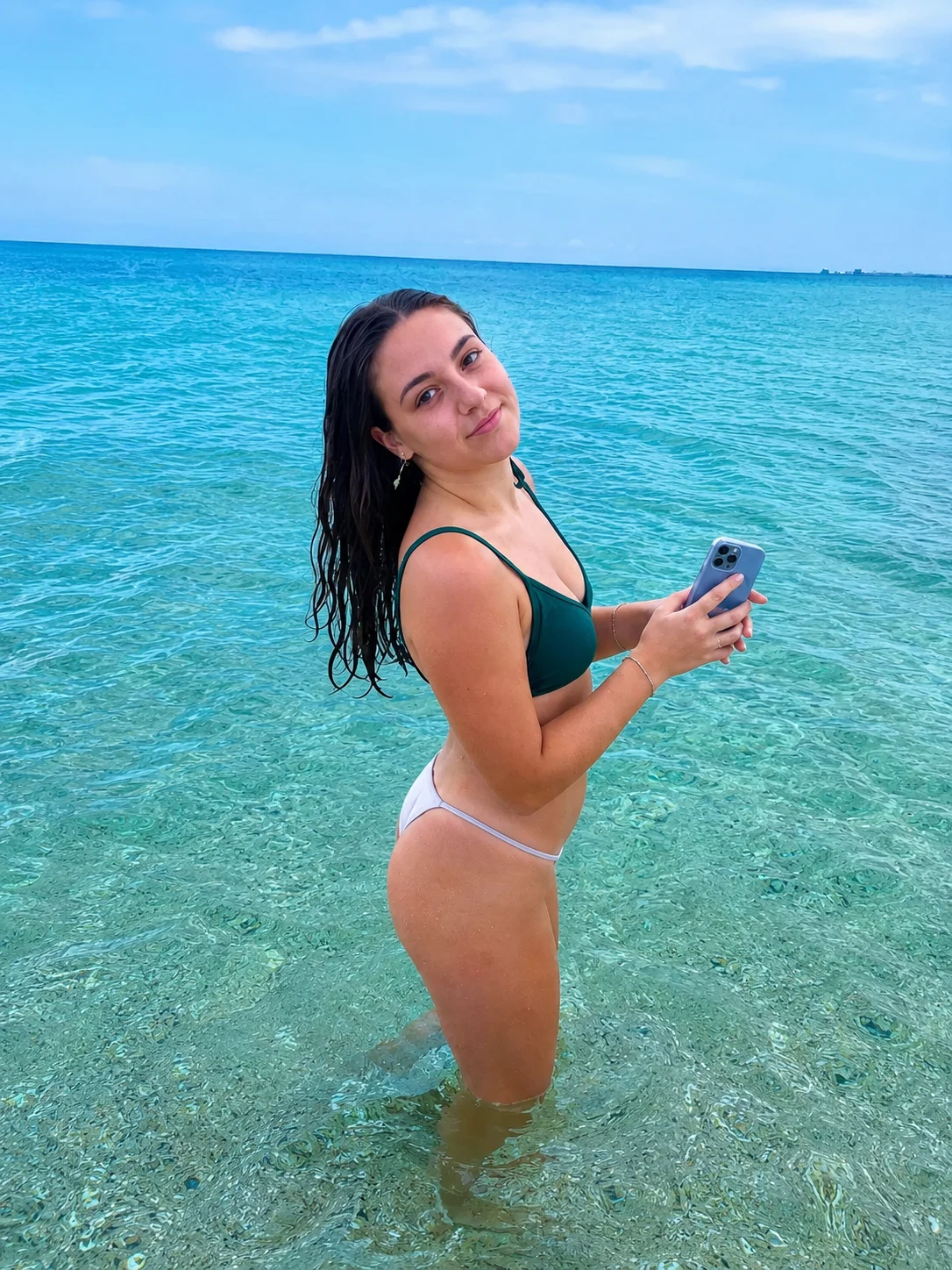
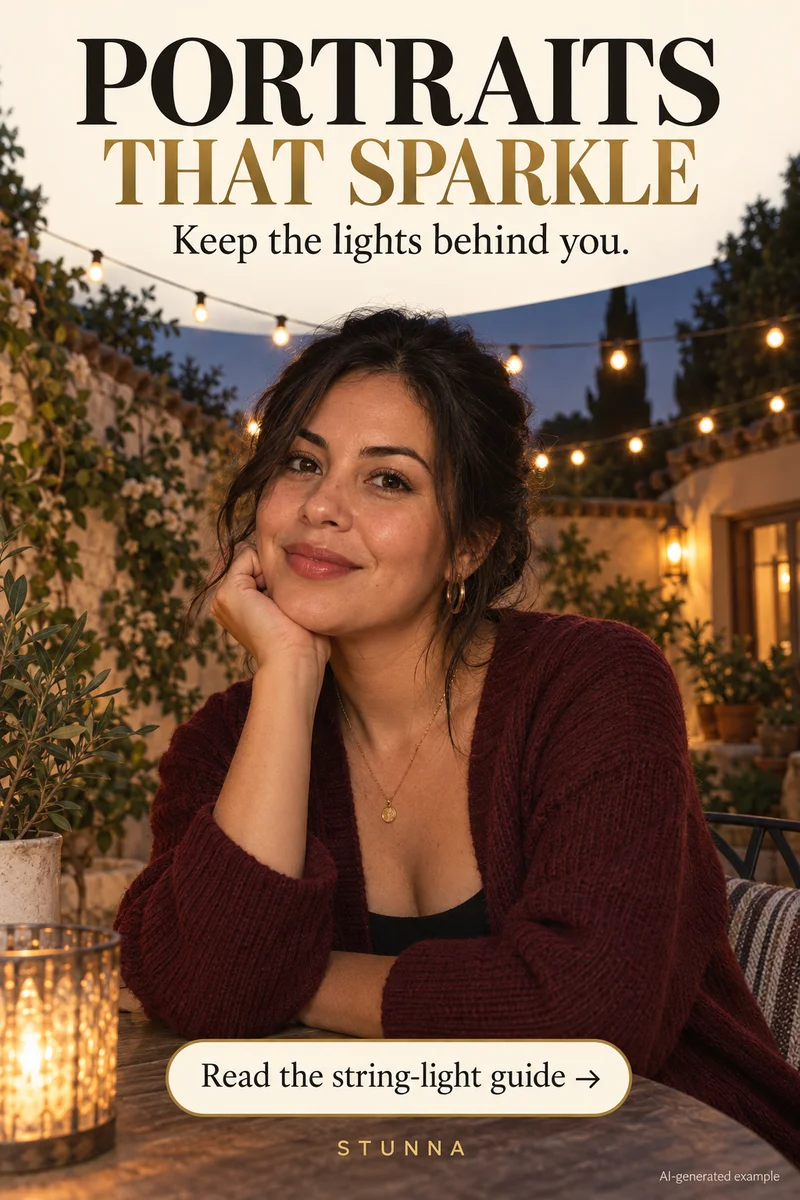
The cover gives a photo dump its first feeling. It might introduce the person, show a small detail, or establish the place. The strongest choice depends on the story inside, not on a rule that every set must begin with a selfie. Compare three candidates before committing and view them at the size people will actually see. The campaign contact sheet is an illustrative AI concept, not an actual Stunna output or a real user's trip.
Compare a portrait, a detail, and a wide shot
Place one candidate from each type beside the others in your library or editor. Use pictures from the same day or story and check focus and expression first. For trip sets, our travel photo dump ideas suggest what to include. Start with source photos you like.
- The portrait: use it when the person or outfit is the main thread. Look for a readable expression, comfortable framing, and enough setting to explain the moment.
- The detail: try a cup, table, jewelry, or textured object when it captures the mood. Keep one obvious subject so a small preview does not become a collection of tiny objects.
- The wide shot: choose a street, terrace, room, or view when the place is central. Look for a clear shape or line that gives the eye somewhere to begin.
Use the four-point cover checklist
Temporarily view the candidate as a small preview. The image should still make sense before the viewer opens it or reads your caption.
- Readable crop: keep the key face or object intact. Check that hands, accessories, and the detail that identifies the place survive the intended crop.
- One clear focal point: ask what you notice first. If three bright areas compete, try another crop or a quieter candidate.
- Room for a caption: if you plan to place text on the image, leave calm space that does not cover the face or main detail. If no overlay is needed, let the photo stand alone.
- Sets the mood: make the opening consistent with the pictures that follow. A quiet cafe detail introduces a different set from a direct-flash night-out portrait. A shared finish, such as our free digicam filter or a date stamp from the timestamp camera, can tie the cover to the set.
Make the crop a deliberate choice
Check the intended aspect ratio in the posting app's preview. Placements can show different crops, so leave space around important edges. Keep hands and outfit details intact in a portrait, and retain the recognizable location feature in a wide view.
Compare a closer crop with one showing more surroundings. Choose by focal point and context. Keep the original intact and check any text overlay at phone size before exporting. A plain white border is another framing option if you would rather not crop tightly.
Build the sequence that the cover promises
Follow a portrait with a wider scene or small detail so the distance changes. Follow a detail-led cover with a picture that explains where it belongs. A wide opener can lead into a person and then a quieter object. You are giving the viewer context, not repeating the cover until the last frame.
Remove near-duplicates unless a small change matters; if several similar frames each matter, a photo strip maker can combine three or four into one slide. Keep color and contrast compatible while retaining each photo's light. End with a closing view or calmer frame, then arrange and review the sequence in your posting app.
Try a cover direction in Stunna, then compare
Photo Dump Cover is Stunna's named direction for turning a selected photo into an opening image. Text-Safe Frame is intended to create cleaner space for a hook or caption. Choose a source that already tells the story, and use the second option only when you actually want room for an overlay. If you edit the cover with a written prompt instead, our ChatGPT photo editing prompts offer starting briefs.
Generated framing or styling may alter the face, scene, or objects. Compare with your original and repeat the crop and focal-point checks; our AI photo editing checklist covers the full comparison. Inspect hands, lettering, and clothing. Add a caption in your posting tool if desired and save the finished cover separately.
A few useful answers
Does a photo dump have to start with a portrait?+
No. A detail can establish a mood and a wide view can introduce a place. Choose the image that makes a clear promise about the pictures that follow.
Should I add text to the cover?+
Use text when it adds useful context. Keep it short and readable, with space around the main subject. A strong photograph can work without an overlay.
How many pictures should I include?+
Choose the pictures that add a new part of the story and fit your posting app's limits. A portrait, place, and detail can be enough; remove repeated frames that add little.