LET THE PHOTO MOVE
Creative Motion Blur Photos: A Phone Photo Guide
Try three movement ideas, then use a four-point check to keep the portrait readable. Learn how captured motion differs from an AI motion-echo look.
Try the idea on your own photo with Stunna.


Free to download. Pro options available.
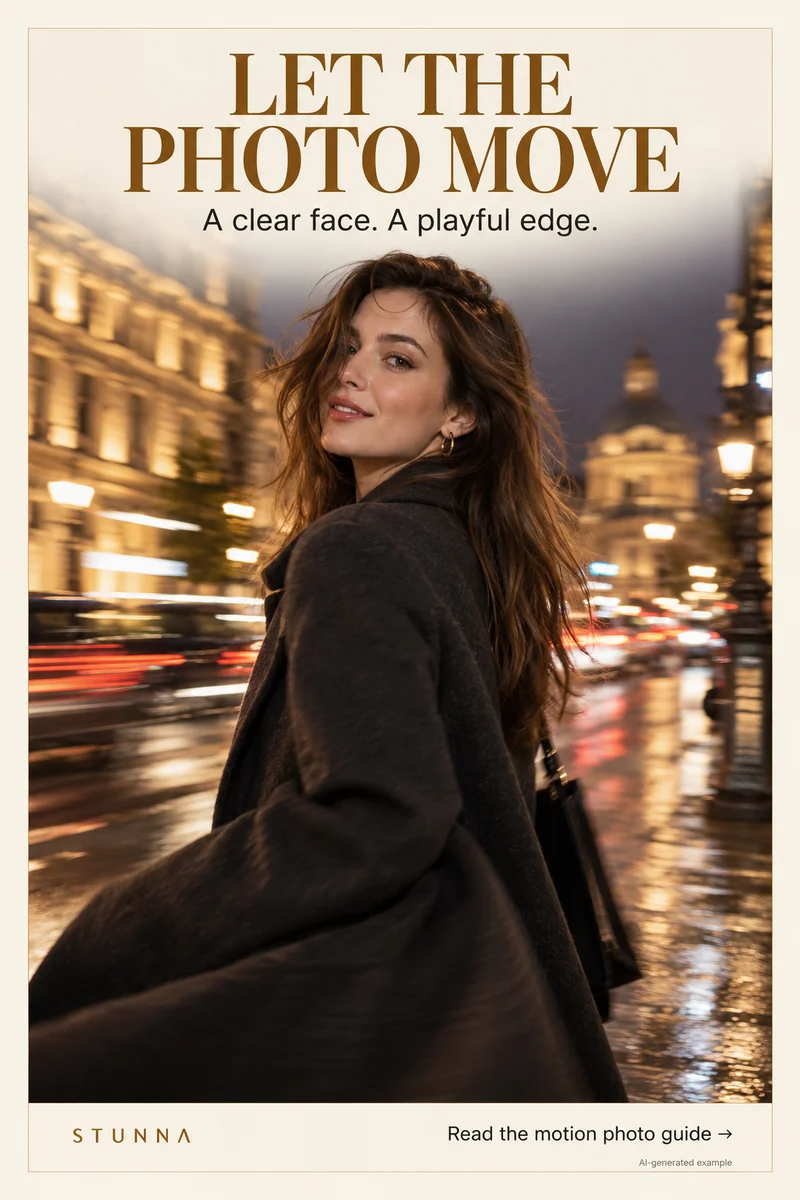
Movement can make a portrait feel like a moment you were part of: a sleeve turning, a quick step or lights slipping past the edge. Give movement one job and keep the face readable. Here are three ideas and the Pin's four checks. The hero is an AI-generated illustration, not a shutter experiment or an actual Stunna result.
Decide whether you want captured blur or a generated look
Captured motion blur comes from movement while the camera records an exposure. Moving the subject can blur that subject; moving the camera can blur the scene. [Canon's panning guide](https://www.usa.canon.com/learning/training-articles/training-articles-list/how-do-i-get-a-panning-effect) explains how tracking a moving subject with a slower shutter can convey motion. A readable face takes practice, timing and an appropriate exposure rather than one universal setting.
Stunna's Ghost View is a generated look with fading motion echoes. Those echoes are created during the edit; they are not proof that your camera captured several positions. Use a clear source portrait for that route and inspect the result. The shooting ideas below work independently of an app, while the final section explains the generated option.
Movement idea 1: one sleeve, strand or small turn
Keep the head fairly still and let one small detail move: a jacket sleeve, scarf or shoulder turn. Choose a background with space around it. Start with soft light and a stationary photographer. Ask for a small, repeatable movement instead of a fast spin.
Take a still reference, then several moving frames. Your phone may freeze the movement in bright light, which can still make a lively photo. If blur appears, choose readable eyes and expression. Avoid moving a hand across the face; it makes capture and later edits harder to judge.
Movement idea 2: a short walk through the frame
Choose an open patch of pavement and take one or two relaxed steps. Leave room in the direction of travel. Look toward the camera briefly, then continue the step instead of holding a walking pose. A coat hem or bag can carry movement while the face anchors the picture.
Repeat the path and review between attempts. Choose a frame where step, hands and expression work together. If the face smears, shorten the movement or find brighter light. If everything is sharp, keep the gesture rather than forcing blur through repeated exports.
Movement idea 3: follow the subject with the camera
Have the subject move across the view while the photographer follows smoothly in the same direction. Begin following before taking the picture and continue afterwards. Use a simple background and fairly consistent distance so focusing and framing are less demanding.
Your phone may choose an exposure too short to show blur. If the chosen camera app offers shutter control, try a slower exposure and review the result. Stunna's Ghost View is a generated edit, not a claim of shutter control or captured motion.
Blur with a plan: the four-point check
Review at normal viewing size first, then zoom in. A photo that looks energetic as a thumbnail can hide a doubled hand or a smeared face. Keep the original alongside any generated edit, particularly when the intended effect adds overlapping silhouettes.
- Choose one moving detail. Identify the sleeve, step or background streak that carries the motion; simplify if everything competes.
- Keep the face readable. Check eyes, mouth and expression at feed size, then compare identity with the original when editing.
- Try more than one frame. Compare a still reference and several attempts instead of committing to the first blur.
- Check hands and outlines. Look for stretched fingers, merged jewelry, unexpected silhouettes and echoes that cross the face.
Finish the picture around its strongest detail
Crop to give the movement space without losing the person. Keep color changes restrained so streaks do not overwhelm the expression. Save a clean original and one edit, then inspect the exported file. In a small photo set, place the moving frame between calmer images.
For a night portrait, the G7X-inspired flash guide covers framing and lighting. Night Flash provides a generated flash mood in Stunna; it does not add physical flash or promise a shutter-sync technique. Choose the route that suits the story.
The free camcorder filter offers another finishing option. Explore a separate tape-style finish; it does not recreate captured slow-shutter motion.
Plan the next frame
To build a five-shot story around a celebration, use the guide to birthday photo ideas. To compare three viewpoints before choosing the frame, use the guide to phone camera angles. To check texture at full size and feed size, use the guide to film-grain photo editing. To sequence portraits, settings and small details into one story, use the guide to a weekend photo dump.
To request a specific background change and inspect what stays, use the guide to ChatGPT background-edit prompts. To give the face and hands space away from distorted edges, use the guide to fisheye photo framing.
A few useful answers
Will my phone's normal camera create visible motion blur?+
It depends on the exposure the camera chooses and how the scene moves. Bright light often produces a crisp moving frame. Try several attempts, and use shutter control only if your selected camera app actually provides it.
Is Ghost View the same as a slow-shutter photo?+
No. Ghost View generates fading motion echoes from an uploaded photo. Slow-shutter blur records movement during capture. The two can suggest a similar mood, but they come from different processes.
What should I do if the movement covers the face?+
Choose another frame, reduce the movement or use a clearer source. For a generated edit, reject versions that change identity or merge facial details. A readable portrait is more useful than keeping every dramatic streak.