THE PHOTO RESCUE PROMPTS
ChatGPT Prompts to Fix a Photo: Rescue Edits
Copy rescue prompts for closed eyes, glasses glare, busy backgrounds, dim rooms and crooked horizons, then check the edit before you save it.
Try the idea on your own photo with Stunna.


Free to download. Pro options available.
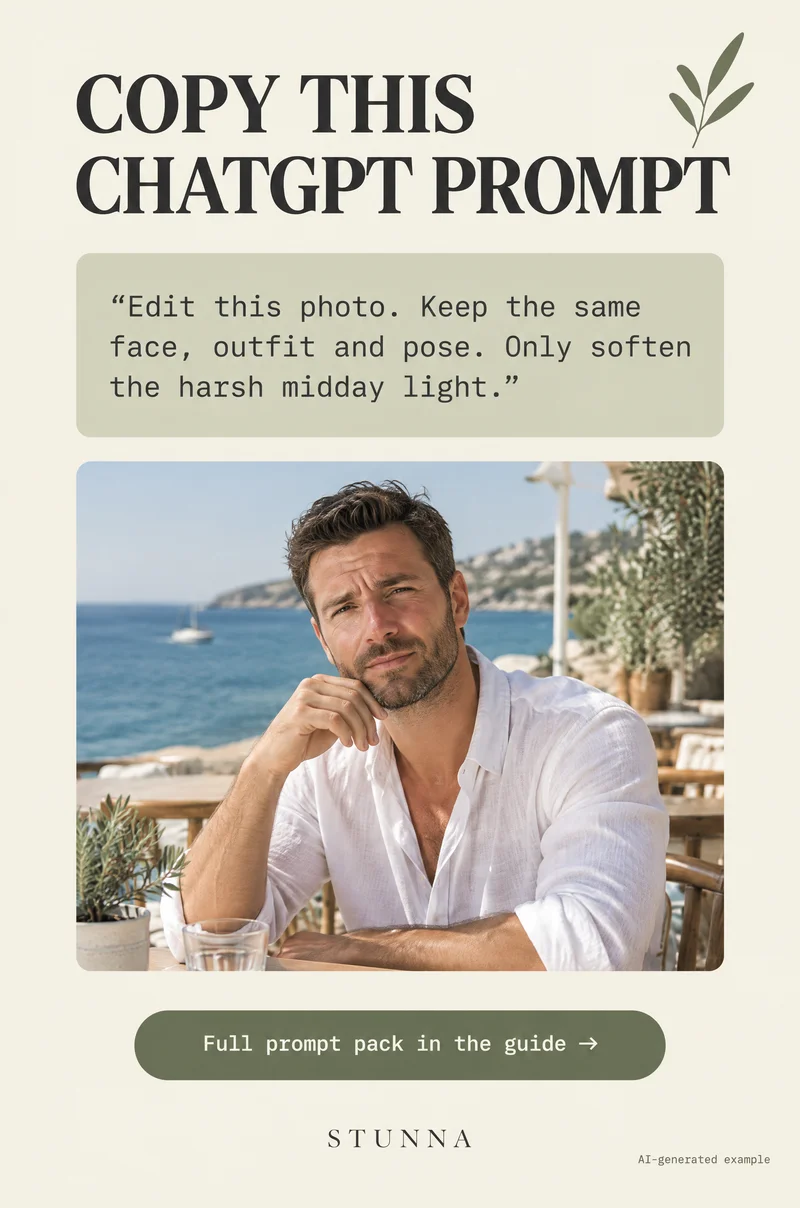
Some photos are almost right: the pose works and the moment matters, but one thing spoils it. This guide gives you five rescue prompts plus a bonus harsh-light prompt, each written to fix one problem while protecting everything else. Only upload photos you have permission to edit, and remember that AI editing can quietly change a face, so every result needs a careful look. The visual examples on this page are AI-generated illustrations, not actual Stunna results.
The line every edit prompt needs, plus a bonus harsh-light prompt
Start every rescue with one preservation line: “Keep the same face, expression, hair, outfit, pose and background. Then ask for one change only.” Asking for a single fix makes the result easier to judge and gives the model less room to redesign the picture. If you want a whole new look such as flash or film instead, our ChatGPT photo editing prompts cover those styles.
Before uploading, make sure you have permission to edit the photo, especially when other people are in it. Keep the original saved separately. Preservation instructions communicate what you want; they do not guarantee that identity, hands or small details stay unchanged.
The bonus prompt below handles a common near-miss: a portrait taken under hard midday sun, with dark eye sockets and bright patches on the forehead. It works best when the face is in focus and the shadows are not completely black. For shooting fixes on the day, see our guide to photos in harsh sunlight.
Rescue 1: closed eyes in an otherwise good photo
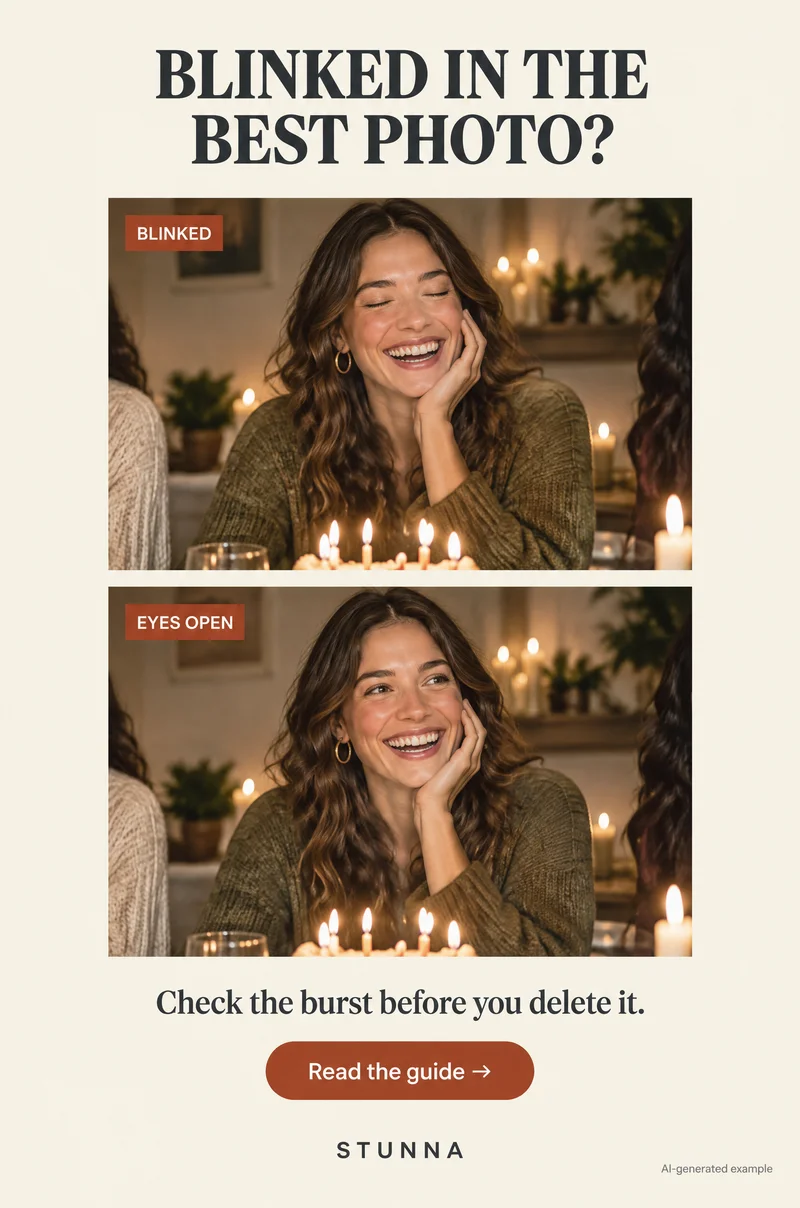
A blink can ruin the one photo where everyone else looks great. This prompt asks for open eyes and nothing else. It works best when the eyes are only partly closed or when you can describe the person’s eye color and shape; a fully closed eye means the model has to invent what it cannot see. Our blink photo guide covers how to avoid blinks while shooting, which is always more reliable than fixing them afterwards.
Compare the eyes closely with another photo of the same person. If the gaze drifts, the eye shape changes or the expression looks startled, ask again or keep the original.
Rescue 2: glasses glare hiding the eyes
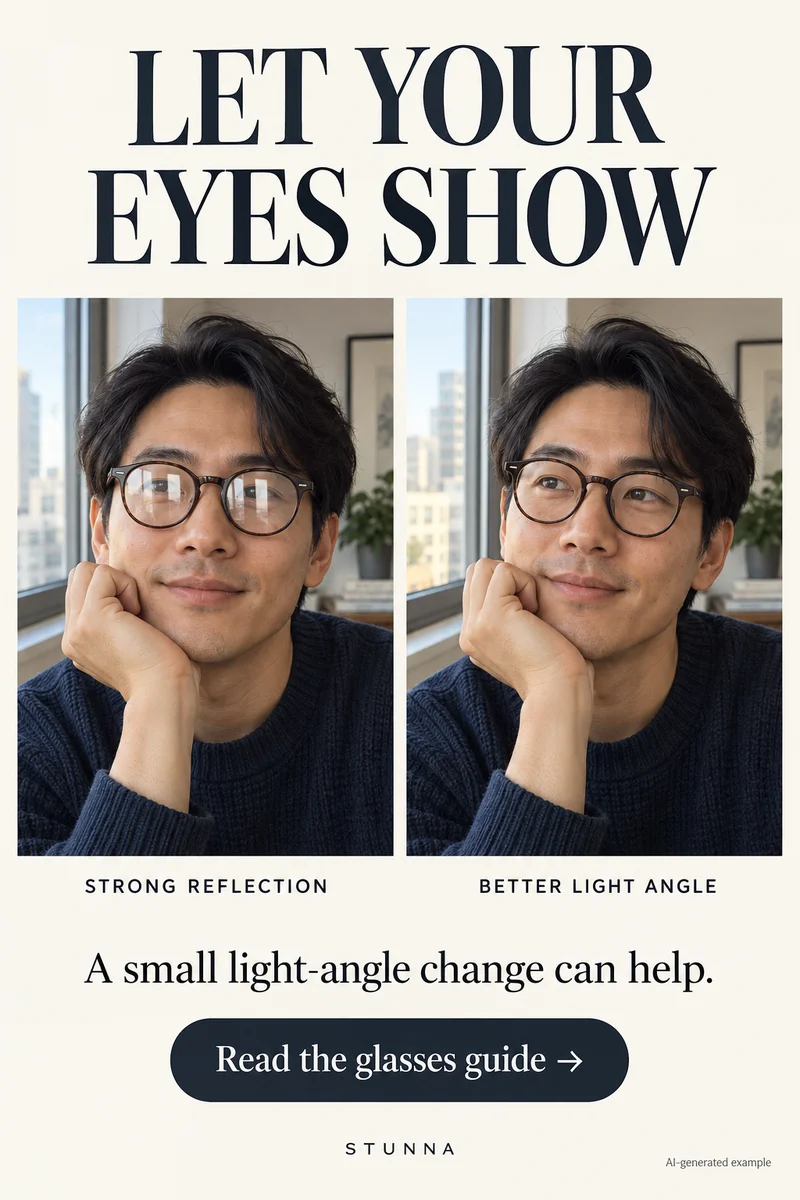
A bright reflection across a lens can hide the expression that makes the portrait. This prompt asks for less glare while keeping the frames. If the reflection completely covers one eye, the model will generate detail rather than reveal what was there, so judge the result against how the person really looks. Our glasses glare guide explains how to move the light and camera so you need less editing.
Rescue 3: a busy background pulling attention
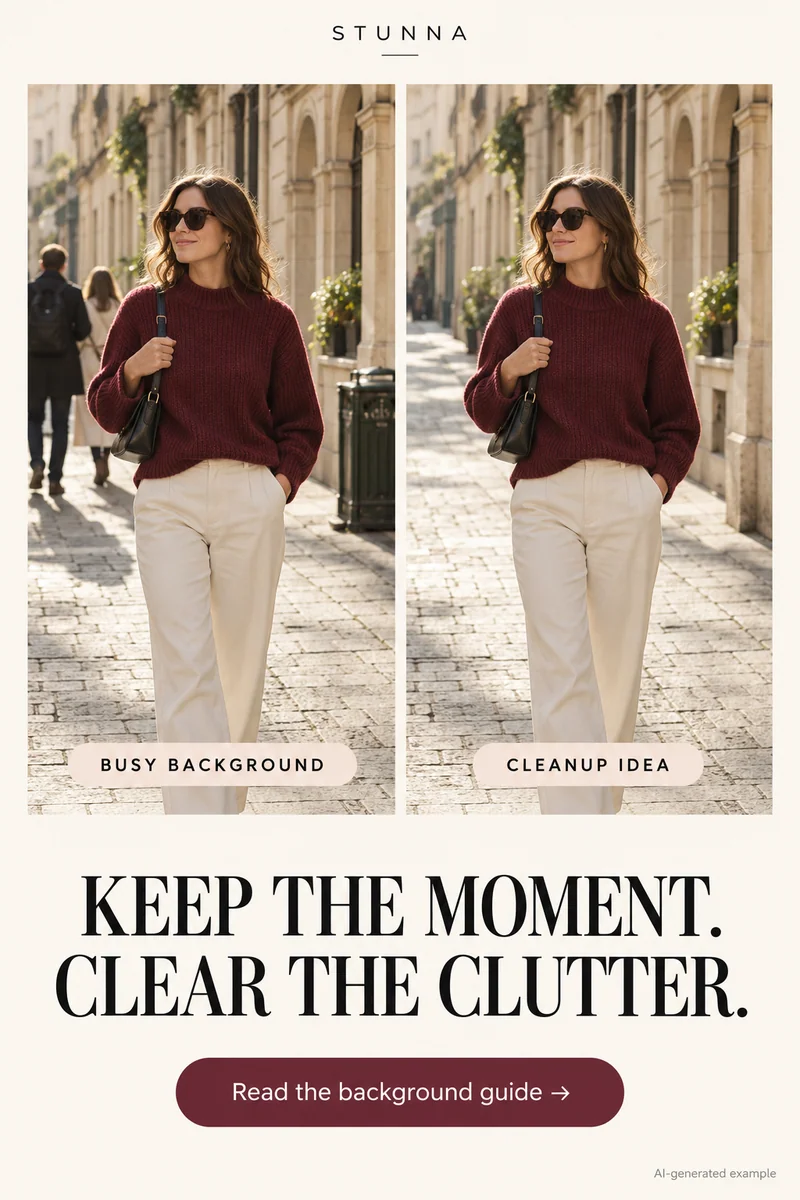
Strangers, trash cans or a cluttered shelf behind someone can make a good portrait feel messy. This prompt asks for a calmer background without inventing a new place. Smaller removals usually look more believable than clearing a whole crowd, and anything touching the person, such as a hand on a shoulder, is harder to remove cleanly. If you are shooting on a trip, our city break photo list includes angles that keep backgrounds simpler from the start.
Check edges after the edit: hair, fingers, bag straps and the outline of the shoulders are where removals often leave smudges or odd shapes.
Rescue 4: dim indoor light and muddy faces
Restaurant, party and living-room photos often come out dark, grainy and orange. This prompt brightens the face gently and keeps the room’s mood, which usually looks more honest than turning night into day. Our dinner party photo guide has setup tips for warm rooms, and if the room is lit by colored bulbs, the red light photo guide covers why skin can look strange.
Very dark, blurred photos, such as moving sparkler photos, are better reshot than rescued. If you want a deliberate flash style rather than a correction, try the flash filter instead.
Rescue 5: a crooked horizon
A tilted horizon or leaning building makes an otherwise calm photo feel off. Any basic phone editor can straighten and crop, and that is usually the safest fix because it changes nothing else. Use the prompt when straightening would crop too tightly and you want the edges filled. Check the filled edges carefully, because invented corners can repeat patterns or bend lines.
A straightened shot also sits better inside a border; our polaroid photo guide shows how a white frame makes a level horizon look intentional.
Check four things before you save
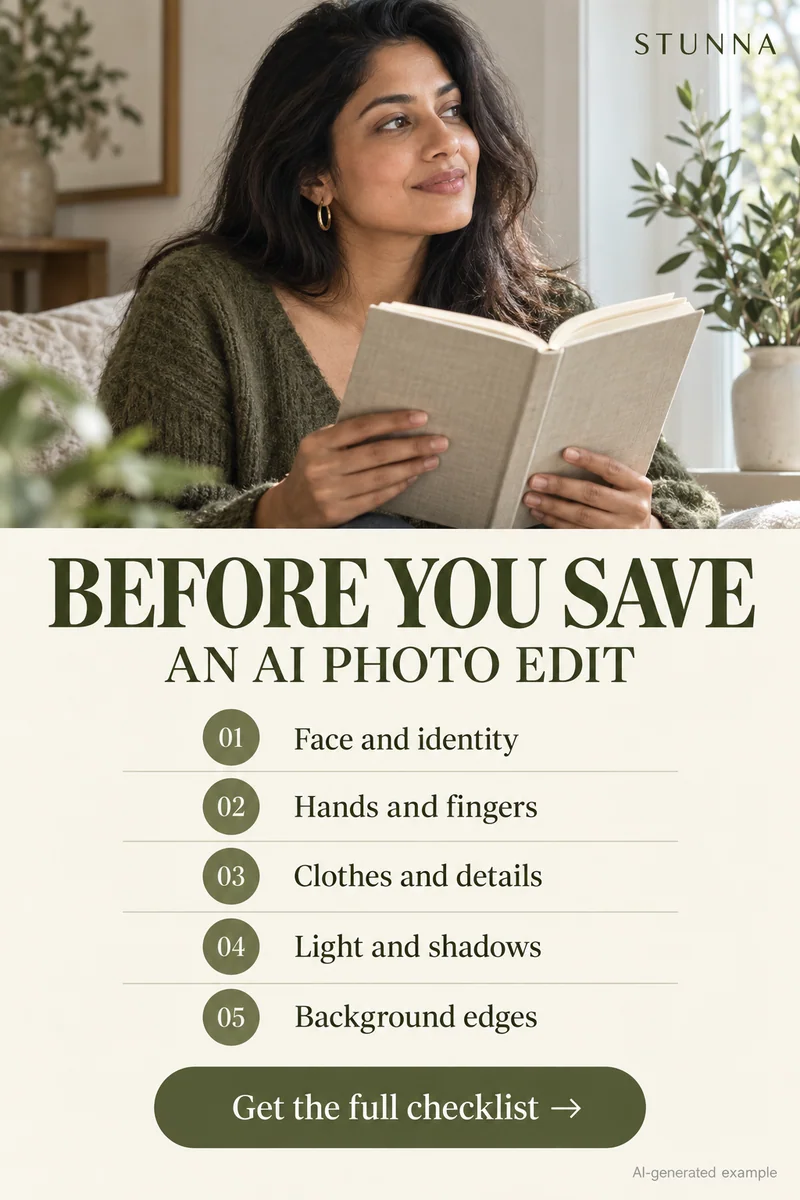
Put the edit and the original side by side at the same crop, then zoom in. This four-point check takes a minute and catches most problems. Our AI photo editing checklist goes into more detail on what to inspect.
If one detail drifted, do not start over. Paste the follow-up prompt below in the same conversation and name the detail to restore.
- Identity: same face shape, eyes, nose, teeth, skin tone and age. Ask someone who knows the person if you are unsure.
- Hands and edges: count fingers and check hair, jewelry, straps and glasses frames.
- Background: nothing new appeared, signs and lines still make sense, and no smudged patches remain.
- The one change: the fix you asked for actually happened, and nothing else became the story.
A few useful answers
Will ChatGPT keep my face exactly the same?+
Not reliably. Preservation lines help, but an image model can still change eyes, teeth or face shape. Compare the result with the original and keep the original if identity has changed.
Can I edit photos of other people?+
Only upload photos you have permission to edit and share. Be especially careful with photos of children or people who did not agree to an AI edit.
Why ask for only one change per prompt?+
A single request is easier for the model to follow and easier for you to check. Stack fixes one at a time and review after each step.
Is it better to reshoot?+
If you can, yes. A reshoot keeps every real detail. Rescue prompts are for moments you cannot repeat.