THE CLEANER BACKGROUND GUIDE
Clean Photo Background: Fix It Before and After
Try framing and a small change of angle first, then use a precise cleanup brief when an existing personal photo needs an edit.
Try the idea on your own photo with Stunna.


Free to download. Pro options available.
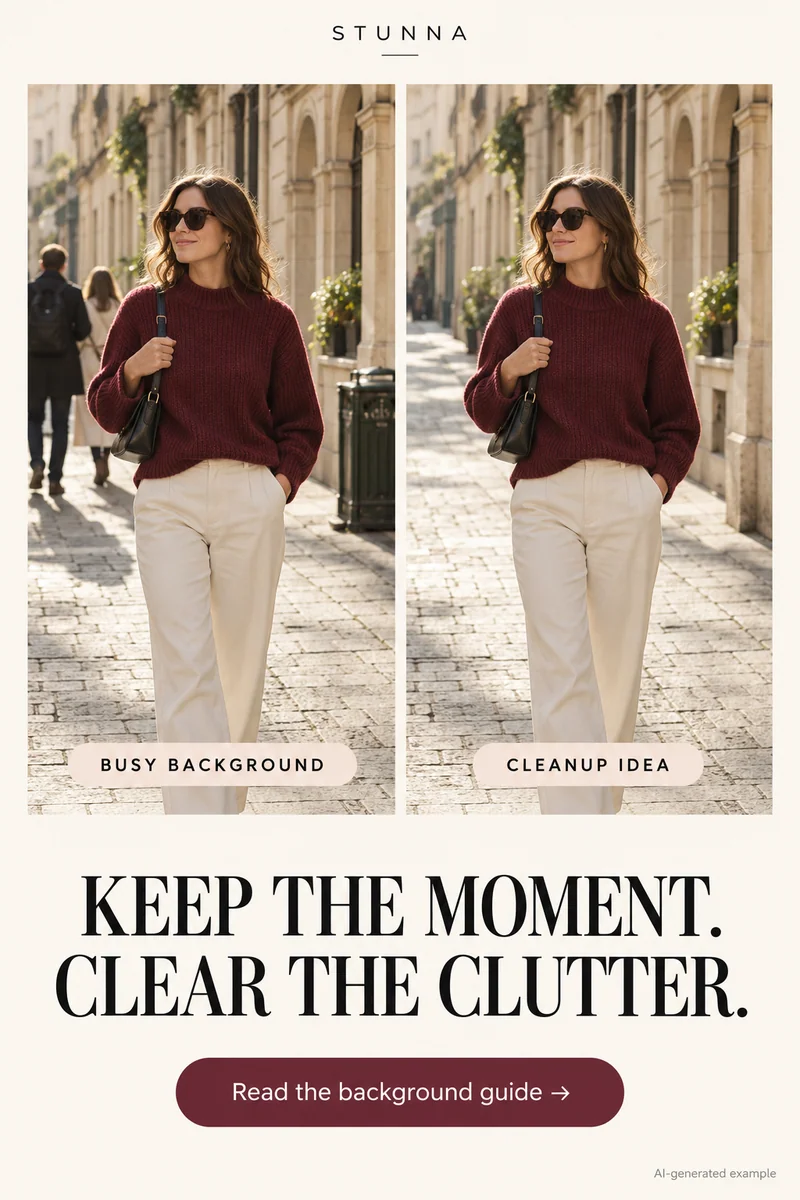
A cleaner background gives the subject more room without removing all sense of place. Start by deciding which objects tell the story and which ones pull attention away. Often a step sideways or a crop is enough. AI cleanup is an optional creative route for an existing personal photo, and it can invent replacement detail. The campaign comparison is an illustrative AI concept, not evidence of what Stunna removed from a real photograph.
Change the frame before changing the scene
Scan the edges and the area behind the subject. A bright bin or a pole crossing the head can distract more than a distant crowd. Move the camera left or right and watch what shifts. Move the subject if that alone cannot separate them.
For an existing image, try a crop that keeps important hands, clothing, and location detail. Leave breathing room. Compare it with the original before deciding on removal; a simpler composition can preserve the actual moment.
Define exactly what stays and what goes
Choose one distraction to address first. Describe it by location and appearance: the red bin at the lower right, the cable behind the chair, or the distant person beside the doorway. Keep objects that explain the scene unless you deliberately want a different interpretation. Reflections in lenses are a different fix; our guide to glasses glare in photos covers that.
Protect the subject, pose, clothes, camera angle, lighting, and architecture explicitly. An object overlapping hair, hands, or fine fabric leaves a harder edge to judge. The editor may generate parts hidden in the original.
Try this suggested background-only prompt
Upload the original into an image editor that accepts written instructions and replace the bracketed description. This is a suggested starting prompt, not a benchmarked recipe or a guarantee that the tool will preserve every detail. For more wording ideas, see our ChatGPT photo editing prompts.
Check the repair, not just the empty space
Compare at the same crop and size. Inspect repeated textures, bent lines, mismatched paving, and shadows that lead nowhere. Follow railings and wall edges across the repair. Inspect the subject too; background-only instructions may still leave a changed face or outfit. Our AI photo editing checklist walks through these comparisons step by step.
If something looks wrong, refine only that area or return to the source. Repeatedly editing a generated result can make earlier changes harder to track. Keep a separate original. Do not use AI cleanup as proof in reporting, disputes, records, or other situations where the photograph must faithfully document what was present.
Choose a Stunna cleanup direction with the right scope
Crowd Eraser targets background tourists and strangers. Declutter is intended for distractions such as bins, cars, or scaffolding. Room Reset focuses on indoor items such as laundry, cables, and bottles. Clean Slate combines crowd, clutter, and sky cleanup, so it is a broader choice than removing one object.
Use the narrowest direction that matches your goal. Preserve a cup, sign, or person when that detail belongs to the memory. Removal is a creative choice, and a quieter background can still feel lived-in.
A few useful answers
Should I remove everything behind the subject?+
No. A few relevant details help explain the place. Start with the object that draws attention away from the subject and compare a simple crop before removing it.
Can cleanup restore the exact surface hidden by an object?+
An AI editor generates a plausible replacement from surrounding context. It does not establish what was really behind the removed object.
Why did my face change during background editing?+
Generated edits may alter protected areas despite instructions. Compare identity and edges with the original, reject an unwanted change, and try a narrower edit from the source.